Best Computer for Artificial Intelligence A 2026 Guide
You open an AI app, load a model, click run, and your laptop suddenly acts like it’s hauling bricks uphill. The fan gets loud. The screen stutters. Your browser starts freezing. You wonder whether you need a new computer, or whether AI just isn’t meant for regular people.
Usually, your computer isn’t broken. It’s mismatched to the job.
That’s the heart of buying the best computer for artificial intelligence. Most advice online throws specs at you without explaining what those parts do. You see terms like GPU, VRAM, NPU, CUDA, RAM, and TOPS, and it starts to feel like shopping in a foreign language.
A better way to choose is to think like a hiring manager. AI work is a set of jobs. Your computer is the team. The CPU manages tasks. The GPU handles the heavy math. RAM holds materials ready to use. Storage fetches files. An NPU helps with certain AI features on newer laptops. Once you understand each job, the buying decision gets much easier.
If you’re a beginner, that’s good news. You probably don’t need a monster workstation. If you’re planning local model training, that changes things fast. The smart purchase depends less on hype and more on what you want to do next month.
Why Your Laptop Freezes When You Run AI
A lot of people hit the same moment first.
They download an AI image generator, or try a local chatbot, or run a notebook with a model they found online. It launches. Then the machine slows to a crawl. Typing lags. The mouse skips. The battery drains. The fans sound like they’re trying to leave the room.
That happens because AI asks your computer to work in a completely different way than email, video calls, or web browsing.
A normal laptop is built to juggle many light tasks. AI often wants one thing instead. It wants to do a massive amount of math, over and over, very quickly. That’s why a machine that feels fast in everyday use can still struggle badly with AI.
Why regular computing feels different
Opening ten browser tabs is like handling ten small errands.
Running AI is more like asking your computer to sort, compare, and transform huge piles of information at once. If the machine lacks the right kind of processing power, enough memory, or enough graphics memory, everything backs up.
People often blame the app. Sometimes the app is clunky. But often the bigger issue is hardware fit.
Your laptop freezing during AI work usually means the workload is larger than the hardware’s comfort zone, not that you bought a bad computer.
The confusion that trips up beginners
The biggest misunderstanding is thinking all AI tasks are equally demanding.
They aren’t.
Using a model that already exists is one kind of work. Creating or fine-tuning a model is another. Running a lightweight AI writing tool on the cloud is a very different experience from asking your own machine to process a local image model.
That’s why one person says, “My basic laptop is fine for AI,” while another says, “You need a serious GPU.” Both can be right. They’re just talking about different jobs.
AI Workloads 101 Training Versus Inference
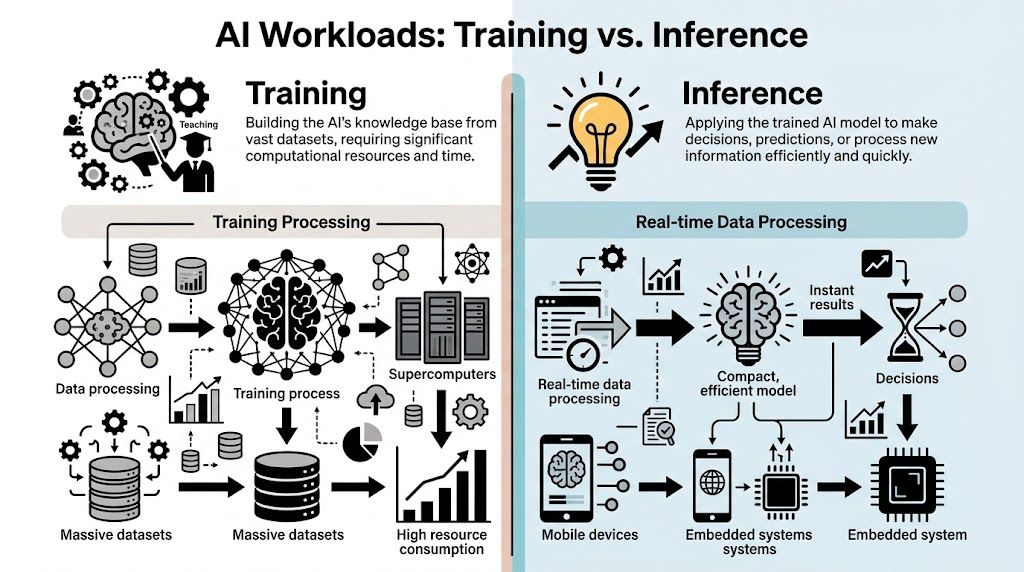
Before choosing hardware, you need one distinction clear in your head. Training and inference are not the same thing.
Training is the expensive, sweaty part. Inference is the using-what-you-already-learned part.
Training means teaching the model
Think of training like teaching a student a brand-new subject from scratch.
You show examples. The student gets answers wrong. You correct the mistakes. Then you repeat that cycle again and again until the student improves. AI training works similarly, except the “student” is a model adjusting internal weights through a huge amount of repeated computation.
That process is hard on hardware because the machine has to load data, perform intense parallel math, store temporary values, and keep repeating the cycle without choking on memory limits.
If you want a beginner-friendly overview of the process itself, this guide on how to train a neural network is a useful companion to the hardware discussion.
Inference means asking for an answer
Inference is more like giving that trained student a quiz.
You’re not teaching from scratch anymore. You’re asking the model to use what it already knows. That could mean generating text, classifying an image, translating a sentence, or answering a question.
Inference still needs capable hardware, especially for larger local models, but it’s usually less punishing than training. That’s why many people can run practical AI tools on machines that would be completely unsuitable for serious training.
Why this matters for your wallet
This one decision shapes almost every buying choice:
- If you mostly use AI tools like assistants, coding helpers, transcription, summarization, or lightweight local models, you’re primarily doing inference.
- If you want to fine-tune or build models locally, your hardware needs rise quickly.
- If you plan serious research or large local training, you’re now in workstation territory.
A lot of beginners overspend because they buy for training when their real life usage is inference plus occasional experiments.
A simple rule that keeps you grounded
Here’s the practical split:
| Workload | What it feels like | Hardware pressure |
|---|---|---|
| Training | Teaching a model from examples | Very high |
| Inference | Asking a trained model to respond | Moderate to high, depending on model size |
Practical rule: Buy for the hardest thing you’ll actually do every week, not the most ambitious thing you might try once.
That one sentence can save you from both underbuying and overbuying.
Decoding the Hardware Your AI Engine Room
A good AI computer is less like a single powerful machine and more like a small workshop. Each part has a job. If one worker is overloaded or one table is too small, the whole room slows down.
That framing helps because AI buying advice often swings between two extremes. Consumer guides reduce everything to “get a fast GPU,” while research discussions assume you already know how memory limits, data pipelines, and inference chips fit together. For a first serious purchase, you need a simpler question answered first. What job does each component do?
GPU the heavy lifter
For local AI, the GPU usually decides whether the experience feels usable or frustrating.
A GPU works like a large specialist crew that can repeat the same math operation across many pieces of data at once. That is perfect for neural networks, which depend on huge amounts of parallel computation. A CPU can do this work too, but far more slowly in most AI workloads.
That is why people shopping for an AI laptop or desktop fixate on the graphics card. ASUS, in the guide cited earlier, highlights this by pairing a high-end CPU with an NVIDIA RTX GPU and dedicated VRAM for machine learning focused laptop configurations.
VRAM the workbench size
If you only remember one hardware term, make it VRAM.
VRAM is the GPU’s own memory. It works like the workbench attached to that specialist crew. A bigger workbench lets the team keep more tools and materials within arm’s reach. A smaller one forces constant shuffling. In AI, that means slower performance, smaller models, or models that refuse to run at all.
This is the point that confuses many beginners. They see a powerful GPU name and assume it can handle any local model. In practice, VRAM often sets the ceiling. If your model, context window, or batch size does not fit, raw GPU power cannot rescue you.
For anyone learning the basics of hosted AI tools before buying expensive local hardware, this practical guide to Google Cloud Gemini and AI Studio tools helps show what kinds of tasks are easy to run in the cloud first.
CPU the coordinator
The CPU does not disappear just because the GPU gets the spotlight.
It handles system tasks, prepares data, manages files, runs background processes, and keeps your operating system responsive while AI jobs run. A good CPU keeps the rest of the machine organized. If the GPU is the engine doing the heaviest math, the CPU is the coordinator making sure the right materials arrive at the right time.
You do not always need the most expensive processor. You do need a modern chip with enough cores and enough cooling to avoid becoming the weak link.
System RAM the staging table
System RAM and VRAM solve different problems.
RAM works like the large table in the middle of the room where you sort papers, open tools, and keep active projects nearby. VRAM is the smaller, faster workbench attached directly to the GPU. If RAM is too limited, multitasking gets messy, datasets become awkward to handle, and your system starts leaning on slower storage. If VRAM is too limited, the model itself becomes the problem.
This is why a machine with lots of RAM but weak graphics can still disappoint for local AI. It may feel fine for browsing, coding, and light data work, yet still struggle with model loading or generation.
Corsair makes a similar point in its workstation guidance cited earlier, where larger AI projects push buyers toward far more RAM and much higher VRAM than a typical consumer PC offers.
Storage the filing cabinet
Storage matters more than beginners expect.
Models, datasets, Python environments, checkpoints, and project files consume space quickly. A fast NVMe SSD works like a filing cabinet with drawers that open immediately. A slower drive turns every load, save, and startup into waiting time. You may not notice this in a spec sheet, but you will notice it every day.
For many first-time buyers, getting enough fast SSD storage is a better choice than overspending on a premium CPU tier they will rarely use.
NPU the efficient specialist
Newer laptops often advertise an NPU, short for Neural Processing Unit.
An NPU is a small specialist for AI inference tasks that need to run locally with low power use. Microsoft explains in its AI PC feature guide that these chips are designed for on-device AI features, especially in laptops where battery life matters.
The easy way to understand it is this. A GPU is built for heavy AI labor. An NPU is built for efficient everyday AI assistance.
Where NPUs help
NPUs fit tasks like these:
- Writing assistance and summarization on the device itself
- Real-time voice or vision features where quick response matters
- Privacy-sensitive inference where keeping data local is useful
- Battery-friendly laptop AI features that would be wasteful on a GPU
They are not the right tool for serious model training. If your goal is fine-tuning larger models or running demanding local LLMs, the GPU and its VRAM still matter far more.
If you are still unsure whether local hardware should do the heavy lifting at all, it helps to compare pricing, compute, and AI services of top cloud providers before committing to an expensive workstation.
A quick component map
| Component | Job in AI | Simple analogy |
|---|---|---|
| GPU | Runs large amounts of AI math in parallel | The specialist crew |
| VRAM | Holds model data close to the GPU | The workbench |
| CPU | Manages system tasks and data prep | The coordinator |
| RAM | Holds active data for the whole system | The staging table |
| NVMe SSD | Loads models and datasets quickly | The filing cabinet |
| NPU | Handles efficient on-device inference | The low-power specialist |
Once you see the jobs clearly, spec sheets stop looking like random numbers. You can match the machine to your actual AI ambition instead of paying for parts that solve the wrong problem.
Local vs Cloud Computing Which Path Is Yours
One of the biggest mistakes beginners make is assuming they need to buy all the power they’ll ever need on day one.
Often, they don’t.
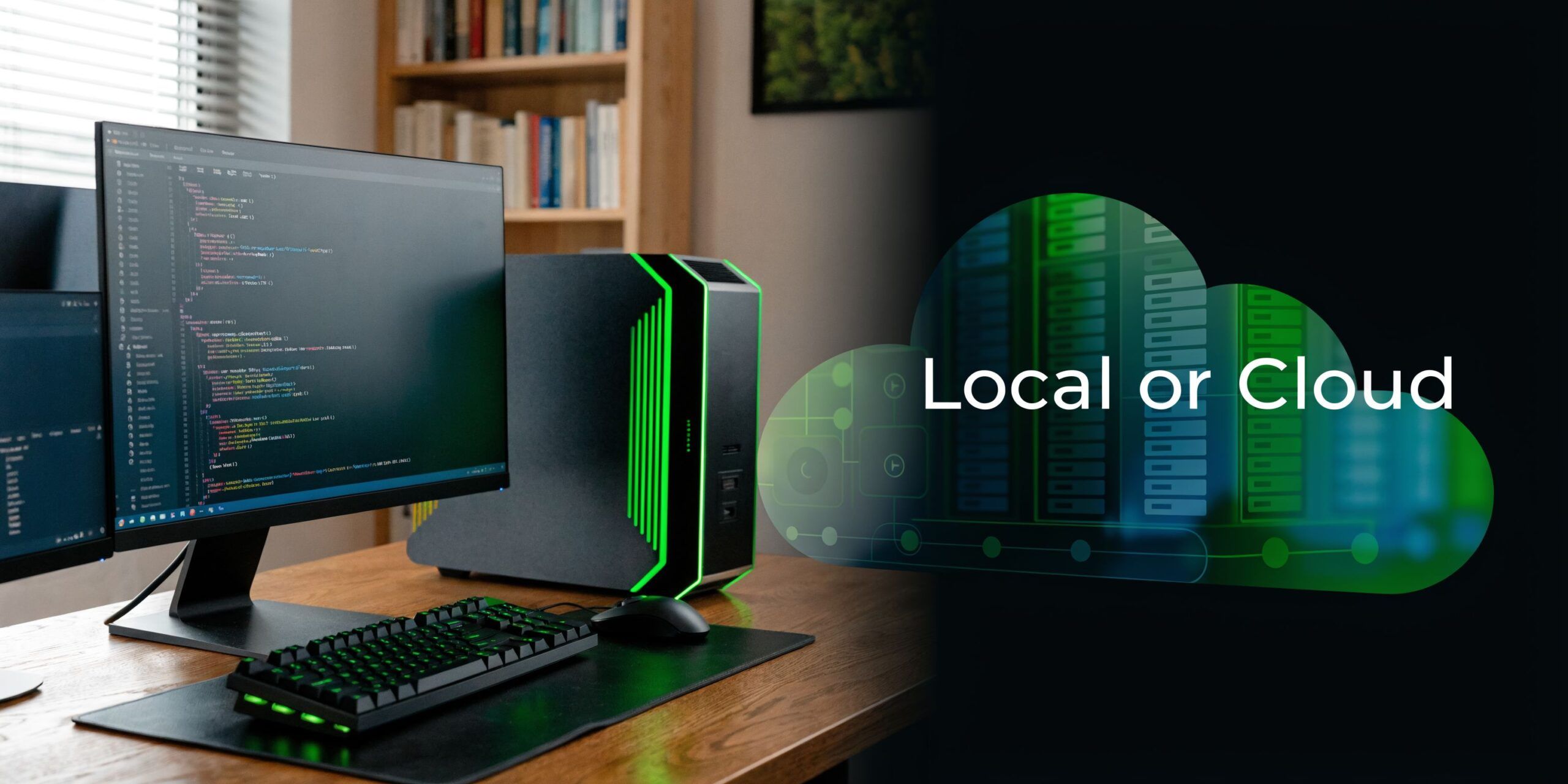
A common misconception is that all AI work requires a high-end local PC. For many learners and engineers building AI agents, a budget laptop with an Intel i5 or AMD Ryzen 5, 16GB of RAM, and integrated graphics is enough because the heavy training work is often pushed to cloud services like AWS or Google Colab, making systems such as the MSI Modern 14 or Lenovo IdeaPad Slim 3 practical starting points (YouTube discussion).
What local computing gives you
A local machine means the hardware is on your desk. You own it. You control it. You don’t need to rent time.
That has real advantages:
- Control because your setup, files, and tools live with you
- No waiting on remote sessions or cloud availability
- Predictable cost over time once you’ve paid for the machine
- Useful for offline work or privacy-sensitive projects
For people who use AI every day, local hardware can feel liberating. You click run and get to work.
What cloud computing does better
Cloud computing shines when your needs spike.
Maybe you need more GPU power for a short project. Maybe you’re testing an idea and don’t want to commit to expensive hardware yet. Maybe you want flexibility while learning. In those cases, renting compute can make more sense than owning everything.
If you’re trying to compare options carefully, this breakdown that helps you compare pricing, compute, and AI services of top cloud providers is a practical place to start.
For readers exploring Google’s AI stack specifically, this overview of Google Cloud Gemini and AI Studio tools can help connect the hardware discussion to real workflows.
The hybrid path is often the smartest one
For most beginners, I like a hybrid model.
Use a solid everyday laptop or desktop for coding, notebooks, small tests, and local inference. When the project gets heavier than your machine comfortably supports, send that part to the cloud.
That keeps your upfront cost lower and your learning curve friendlier.
A lot of consumer AI work works perfectly well this way. You don’t need your own mini data center to learn prompting, automation, agents, pipelines, or API-based app building.
Here’s a quick visual primer before the final comparison:
Side by side decision guide
| Path | Best for | Main drawback |
|---|---|---|
| Local machine | Daily hands-on work, privacy, control | Higher upfront spend |
| Cloud compute | Bursty heavy workloads, experimentation | Ongoing cost and internet reliance |
| Hybrid setup | Most learners and practical builders | Requires knowing when to switch |
If you’re asking whether to buy a top-tier workstation before you’ve built your first real AI project, the answer is usually no.
Spec Recommendations Budget Hobbyist and Pro Tiers
A good AI computer is less about buying the “best” machine and more about hiring the right crew for your kind of work.
If you buy too little, your projects feel cramped. If you buy far too much, you pay workstation prices for a learning path that mostly lives in the cloud. The smart move is to match the machine to the job you expect to do over the next year.
The learner and tinkerer
This tier fits someone experimenting with notebooks, API projects, prompt workflows, small local models, and beginner automation.
Your goal is steady, frustration-free progress. That usually means a modern midrange CPU, 16GB of RAM, and enough SSD storage that you are not deleting files every weekend just to install one more model or tool. Integrated graphics can be perfectly fine if your heavier workloads run in the cloud.
A simple way to judge this tier is to ask one question: are you mainly learning concepts, tools, and workflow design, or are you trying to do serious local model training? If your primary goal is learning, a balanced everyday laptop or desktop is often the better buy.
You will also get more life out of an entry machine if you learn a few basic workflow habits early, such as keeping projects isolated with a simple Docker container setup guide.
The hobbyist and developer
This is the range many readers need.
You want local AI to feel real, not symbolic. You may run coding assistants, test local inference, work with medium-sized models, build automations, and use cloud compute only when a project outgrows your machine. In this tier, the GPU stops being a nice extra and starts becoming part of the core toolset.
A balanced target looks like this:
- A modern Intel Core i7/i9 or AMD Ryzen 7/9 class processor
- 32GB RAM
- A dedicated NVIDIA GPU
- At least 1TB SSD storage
The earlier ASUS example fits this profile well. The key lesson is not the brand name. It is the balance. A capable GPU with too little RAM feels like putting a race engine into a car with a tiny fuel tank. On paper it looks exciting. In daily use it becomes annoying fast.
Buying lens: In the middle tier, balanced parts usually age better than one flashy spec surrounded by compromises.
The professional and researcher
Professional AI work changes the buying logic.
If your income depends on training larger models locally, processing bigger datasets, running experiments all week, or reducing wait time for a team, you are shopping for a workstation. At that point, more memory, more VRAM, better cooling, and more storage are not luxury upgrades. They are how you keep work moving.
As noted earlier in the hardware discussion, high-end local training systems often start with 128GB RAM, a high-core-count CPU, and a GPU with 24GB or more of VRAM. VRAM works like the GPU’s workbench. A larger workbench lets you keep bigger models and larger chunks of data in active use without constantly shuffling things on and off the table.
That does not mean every professional needs the same tower. A researcher fine-tuning models locally may need far more GPU memory than a data scientist who mainly preprocesses data and pushes training runs to remote infrastructure.
A practical comparison table
| User type | Best fit | Local AI capability |
|---|---|---|
| Learner | Everyday laptop or desktop, cloud-first workflow | Light local work |
| Hobbyist developer | Balanced desktop or performance laptop with dedicated GPU | Meaningful local experimentation |
| Professional researcher | Workstation with large RAM, strong cooling, and high-VRAM GPU | Heavy local training and large datasets |
Match the machine to the ambition
A beginner building agents with APIs does not need the same computer as a researcher fine-tuning models every day. That sounds obvious, but it is where many buyers go wrong. They shop by status tier instead of workload tier.
Your hardware choice also shapes how much cloud you will use. If you want help comparing the major platforms before deciding how much local power to buy, this AWS vs Azure vs GCP Comparison is a useful reference.
One practical option for ongoing hardware and tooling coverage is YourAI2Day, which publishes AI news, guides, and product-focused explainers for readers trying to connect specs to real use cases.
Beyond the Box Software and Other Essentials
A good AI computer is not just a pile of fast parts. It is a working environment.
That distinction matters more than many first-time buyers expect. You can own a powerful GPU and still have a frustrating experience if the operating system fights your tools, the drivers do not match your framework, or the machine slows itself down after twenty minutes of sustained work. For beginners, this is often the point where AI hardware feels confusing. The box looks impressive, but the day-to-day setup decides whether the machine helps you learn and build.
Your operating system shapes the experience
Many AI tools are easiest to run in Linux. That does not mean Windows or macOS are bad choices. It means you should check how your intended tools behave before you buy.
Here is the practical way to think about it. The operating system is your workshop floor. If the floor is uneven, every project takes longer. Linux often gives you the smoothest path for Python environments, package management, and lower-level AI tooling. Windows can still work well, especially if you use WSL for Linux-based development. macOS is excellent for general coding and lighter local AI work, but it has more limits once you depend on CUDA-based GPU workflows.
Containers also save beginners a lot of headaches. If you want repeatable setups for apps or experiments, this guide on creating a Docker container for AI projects is a practical place to start.
Drivers and framework support decide whether your GPU can do its job
A GPU is the engine for many AI tasks. Drivers and framework compatibility are the transmission that lets that engine move the car.
Confusion often starts here. People compare raw GPU specs, then discover their preferred framework, library version, or accelerator stack is picky about software support. NVIDIA usually has the easiest path for local AI because CUDA support is widely adopted. That does not make every other option wrong, but it does mean you should confirm compatibility before you spend money.
As noted earlier, the ASUS example shows the broader point well. A laptop can look strong on a spec sheet, but what matters in real use is whether the hardware, drivers, and AI tools work together without constant troubleshooting.
Storage, cooling, and power affect daily usability
AI projects fill storage faster than new buyers expect. Models, checkpoints, datasets, environments, and generated outputs all compete for space. A roomy SSD does not make benchmarks look exciting, but it makes local work much less annoying.
Cooling matters for the same reason. AI jobs often run longer than gaming bursts or office tasks. If heat builds up, the system cuts speed to protect itself. That can turn a fast machine into a mediocre one during the exact kind of workload you bought it for.
Power quality matters too, especially on desktops. An unstable power supply can cause crashes under sustained load, which beginners often mistake for broken code or a bad library install.
A simple buying check helps keep the full system in view:
- Choose an OS with good tool support for the frameworks you plan to use
- Check driver and framework compatibility before buying a GPU
- Buy more SSD space than you think you need because AI files accumulate quickly
- Treat cooling as performance protection during long runs
- Use a quality power supply if you are building a desktop for steady GPU load
The big idea is simple. Hardware gets the attention, but software support and system stability decide whether your AI computer feels like a helpful lab bench or a constant repair project.
Future-Proofing Your AI Rig An Upgrade Checklist
AI hardware moves fast. That’s exactly why future-proofing shouldn’t mean chasing every new part.
It means spending carefully on the foundation so upgrades stay easy later.
Where smart spending pays off
If you’re building a desktop, the motherboard, power supply, and case deserve more respect than they usually get.
A good motherboard gives you expansion room. More RAM slots, current platform support, and space for fast storage all make future upgrades less annoying. A cramped or stripped-down board can trap you early.
A strong power supply helps in the same way. If a future GPU needs more power than your current one, extra PSU headroom can save you from replacing half the machine just to perform one upgrade.
The case is part of the strategy
People often treat the case like decoration. For AI, it’s infrastructure.
A roomy case with good airflow gives you space for larger future GPUs, better cooling, and easier maintenance. That matters because AI parts tend to run hot and grow physically larger over time.
Spend extra on the bones of the system if you plan to upgrade. The fancy part today is often the replaceable part tomorrow.
A quick checklist before you buy
- Choose upgrade room over the cheapest motherboard
- Leave power headroom so the next GPU isn’t a rebuild
- Pick airflow and space over looks alone
- Avoid dead-end designs that lock out memory or storage growth
That’s smart spending, not overspending.
Final Verdict Building Your AI Future
The best computer for artificial intelligence isn’t the most expensive machine you can afford. It’s the one that matches your actual workload.
If you’re learning, building agents, using APIs, and experimenting with tools, a modest machine plus cloud compute is often the right answer. If you want strong local experimentation, a balanced laptop or desktop with a capable GPU makes more sense. If you’re training large models locally for serious work, you need workstation-class thinking.
The framework is simple.
Start with workload. Then set a budget. Then choose your local, cloud, or hybrid path.
Once you do that, the specs stop feeling mysterious. The CPU manages. The GPU does the heavy math. VRAM sets the size of the workbench. RAM keeps the project moving. Storage keeps assets close. NPUs help with efficient inference on newer systems.
That’s enough to make a confident decision.
You don’t need to know everything about AI hardware before you start. You just need a machine that removes friction instead of adding it. Buy for the work you’ll really do, leave yourself room to grow, and start building.
If you want more plain-English AI hardware guides, tool breakdowns, and practical explainers for real-world AI use, visit YourAI2Day.