10 Best AI Tools for Business in 2026
Monday starts with a packed inbox, three meetings before lunch, and a sales rep asking who owns follow-up from last week’s demo. Marketing is waiting on copy. Support wants faster replies. Finance needs cleaner reporting. For a lot of small and mid-sized teams, interest in ai tools for business starts there. Not with innovation goals, but with everyday work piling up faster than people can clear it.
AI is now part of normal operations for many companies. That does not mean every rollout goes well. In practice, the gap between "we bought the tool" and "the team uses it well" is where projects stall.
That is why this guide uses a consultant’s playbook instead of another long list of apps. The tools are organized by business function, so you can match the software to the work your team already does in email, meetings, documents, CRM, support, and internal chat. Each recommendation also includes the trade-offs beginners usually miss, because the wrong fit creates extra tabs, duplicate subscriptions, and messy handoffs.
The goal is simple. Pick one tool that fits a real bottleneck, set clear ownership, and get an early win your team can see. If you need a practical rollout framework before you buy anything, start with this AI implementation roadmap for business teams.
I’ve seen the same pattern repeatedly. Teams get value fastest when the tool sits inside software they already use, has access to the right business context, and solves a narrow problem first. Drafting follow-up emails, summarizing meetings, cleaning CRM notes, routing tickets, or automating repetitive handoffs are good starting points. Asking one tool to fix every workflow at once usually leads to disappointing results.
Data quality, permissions, training, and process design still matter. If outputs are weak, the cause is often incomplete source material, unclear prompts, or nobody owning the workflow after the AI produces a draft. Good implementation matters at least as much as tool selection.
The sections below focus on 10 business AI tools that are useful in day-to-day operations, plus a simple way to compare them and get started without overcomplicating the decision.
1. Microsoft Copilot for Microsoft 365
If your business already lives in Outlook, Word, Excel, Teams, and SharePoint, Microsoft Copilot is the most obvious place to start. It works best when the actual problem isn’t "we need AI" but "our people are buried in documents, meetings, and email threads."
Copilot’s biggest advantage is context. Instead of pasting things into a separate chatbot, staff can draft in Word, summarize email chains in Outlook, pull action items from Teams meetings, and get help in Excel without leaving the tools they already use. That lowers resistance, which matters more than flashy demos.
Where it works best
Microsoft Copilot is strongest for teams that already have heavy Microsoft 365 habits.
- Executive support: Summarize meetings and turn loose notes into follow-up drafts.
- Finance and ops: Use Excel assistance for formulas, analysis prompts, and first-pass interpretation.
- Internal communication: Rewrite updates, polish decks, and condense long email chains.
A practical rollout usually starts with one department, not the whole company. Operations, finance, and executive admin teams often see value first because their work is document-heavy and repetitive.
Practical rule: If your company stores knowledge in SharePoint and communicates in Teams, Copilot usually beats standalone chat tools for everyday internal work.
The downside is licensing complexity. Access can vary by Microsoft plan, and some in-app experiences depend on having the right Copilot license. That can frustrate smaller teams that expect every feature to be available everywhere.
What beginners should know
Copilot is not a cleanup crew for bad file hygiene. If your folders are chaotic, meeting titles are vague, and nobody knows which document is final, the outputs will feel inconsistent. Businesses that succeed with this tool usually fix naming conventions and permissions first.
If you're planning a serious rollout, pair the tool decision with an AI implementation roadmap so the project doesn’t stall after the pilot. You don’t need a giant transformation plan. You do need ownership, access rules, and a short list of approved use cases.
Use Microsoft Copilot at Microsoft 365 Copilot.
2. Google Gemini for Workspace
Monday starts with a familiar mess. The inbox is full, two people took notes in different docs, the sales manager needs a quick deck for an afternoon call, and someone still has to turn a rough spreadsheet into something usable. For teams that already live in Gmail, Docs, Sheets, Slides, and Meet, Google Gemini for Workspace helps inside that flow instead of adding another app to manage.
This is one of the better fits for Google-first companies that want faster execution on everyday work. A founder can clean up customer emails in Gmail. A marketer can turn scattered notes into a usable brief in Docs. A sales lead can get help building formulas or organizing pipeline data in Sheets. Those tasks sound small, but they add up because they happen every day.
Best fit for Google-native teams
Gemini works best when the business problem is basic office friction, not deep workflow redesign. It improves the jobs teams already do inside Workspace, which usually makes rollout easier for beginners. People do not need to learn a separate interface first. They can start where they already work.
The strongest use cases tend to be practical and repetitive:
- Email and document drafting: Customer replies, sales outreach, proposals, policy drafts, and internal updates.
- Formatting rough information: Turn notes into structured Docs, outlines, summaries, and presentation drafts.
- Meeting follow-up: Capture summaries, action items, and next steps from Meet so decisions do not disappear after the call.
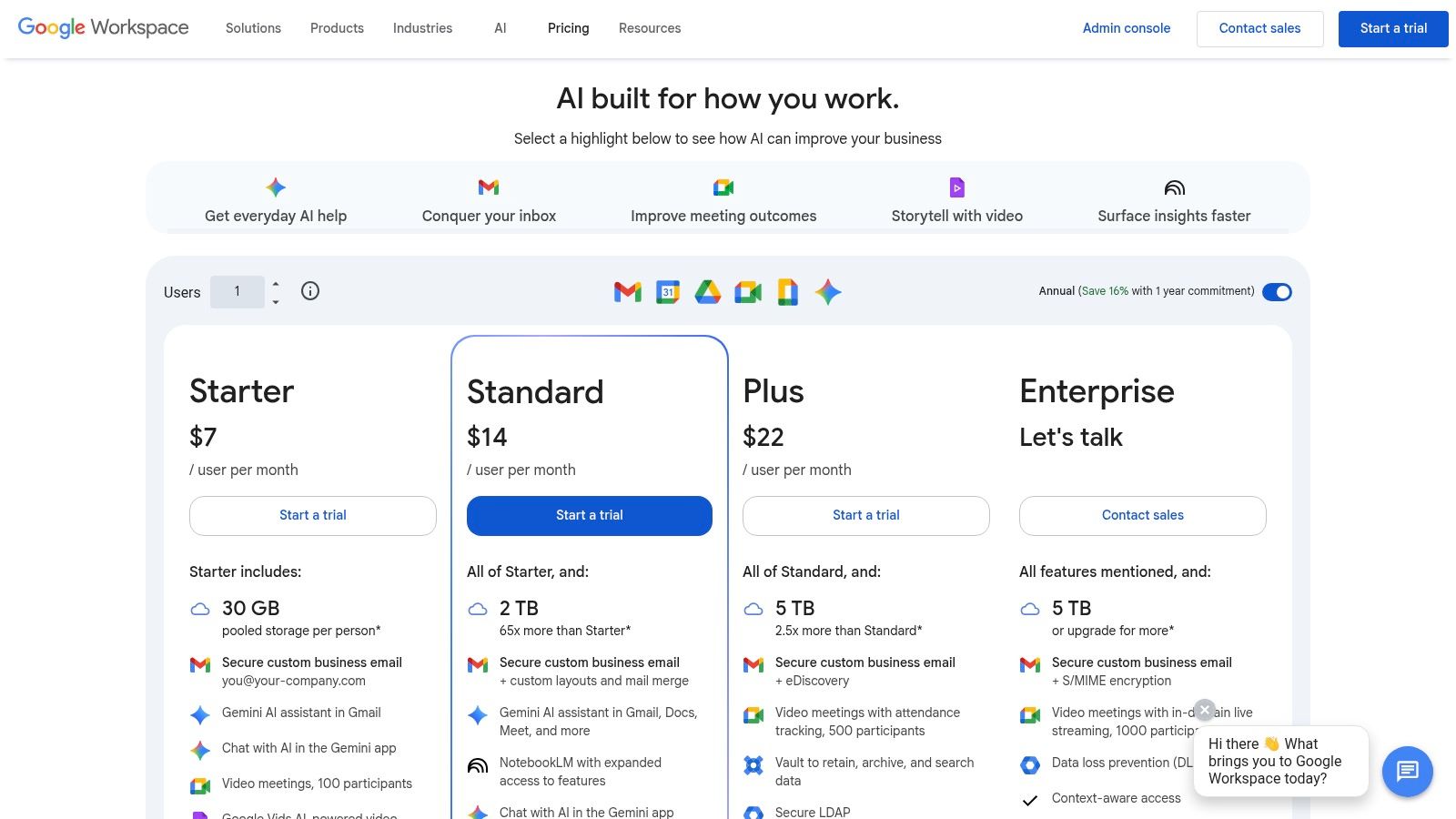
There is a clear trade-off. Gemini is convenient because it sits inside Workspace, but feature access can differ by plan, add-on, and region. That matters during rollout. I would not promise company-wide use until an admin checks exactly which Gemini features are available in your Workspace edition.
The bigger lesson is simple. Useful business AI often looks ordinary. Saving ten minutes on fifty common tasks usually produces more value than one impressive demo that nobody uses again.
First steps for beginners
Start with one function that already depends on Google apps all day. Marketing, sales, recruiting, and executive support teams are usually good first candidates because their work is heavy on writing, meetings, and document cleanup.
Then set three approved use cases for the pilot. For example: draft outbound emails in Gmail, create first-pass briefs in Docs, and generate meeting summaries in Meet. That keeps expectations realistic and gives managers a clear way to judge whether the tool is saving time.
Gemini also exposes weak operating habits fast. If files are scattered across personal drives, version control is messy, or teams take inconsistent meeting notes, output quality will be uneven. The tool can speed up work. It cannot create a clean process from scratch.
Explore Gemini at Google Workspace pricing and plans.
3. OpenAI ChatGPT for Business
A team starts with one simple request. Draft a client email. A week later, people are using the same tool for meeting prep, spreadsheet explanations, policy summaries, research notes, and rough process documentation. That pattern is why ChatGPT for Business keeps showing up in early AI rollouts.
ChatGPT fits businesses that want one flexible AI workspace instead of an assistant tied mainly to a single software suite. It is often a practical choice when different departments have different needs, or when leadership wants to test AI use cases before committing to a larger platform strategy.
The appeal is breadth. Marketing teams use it for campaign concepts and content drafts. Founders use it to turn scattered thoughts into memos or planning notes. Operations teams use it to rewrite messy process docs into something staff can follow. Analysts use it for first-pass interpretation, especially when they need help framing questions before they move into formal analysis.
That range is useful, but it also creates a management problem. General-purpose tools attract every vague request in the company. If no one defines approved use cases, prompt standards, or data boundaries, the result is a pile of one-off experiments instead of repeatable business value.
For that reason, I treat ChatGPT less like a magic assistant and more like a shared workbench. It works best when a business needs speed, versatility, and low friction for testing ideas across functions. It works less well when the company expects the tool itself to create process discipline.
Best for cross-functional experimentation
ChatGPT usually makes the most sense in a few situations:
- Small and midsize businesses: One tool can support marketing, operations, leadership, and customer teams without a long setup cycle.
- Founders and general managers: Good for turning rough thinking into usable plans, briefs, and internal communication.
- Teams building AI habits: Helpful for learning which tasks benefit from AI before buying more specialized tools.
- Departments with varied work: Useful when the same team handles writing, research, summarization, and light analysis in the same day.
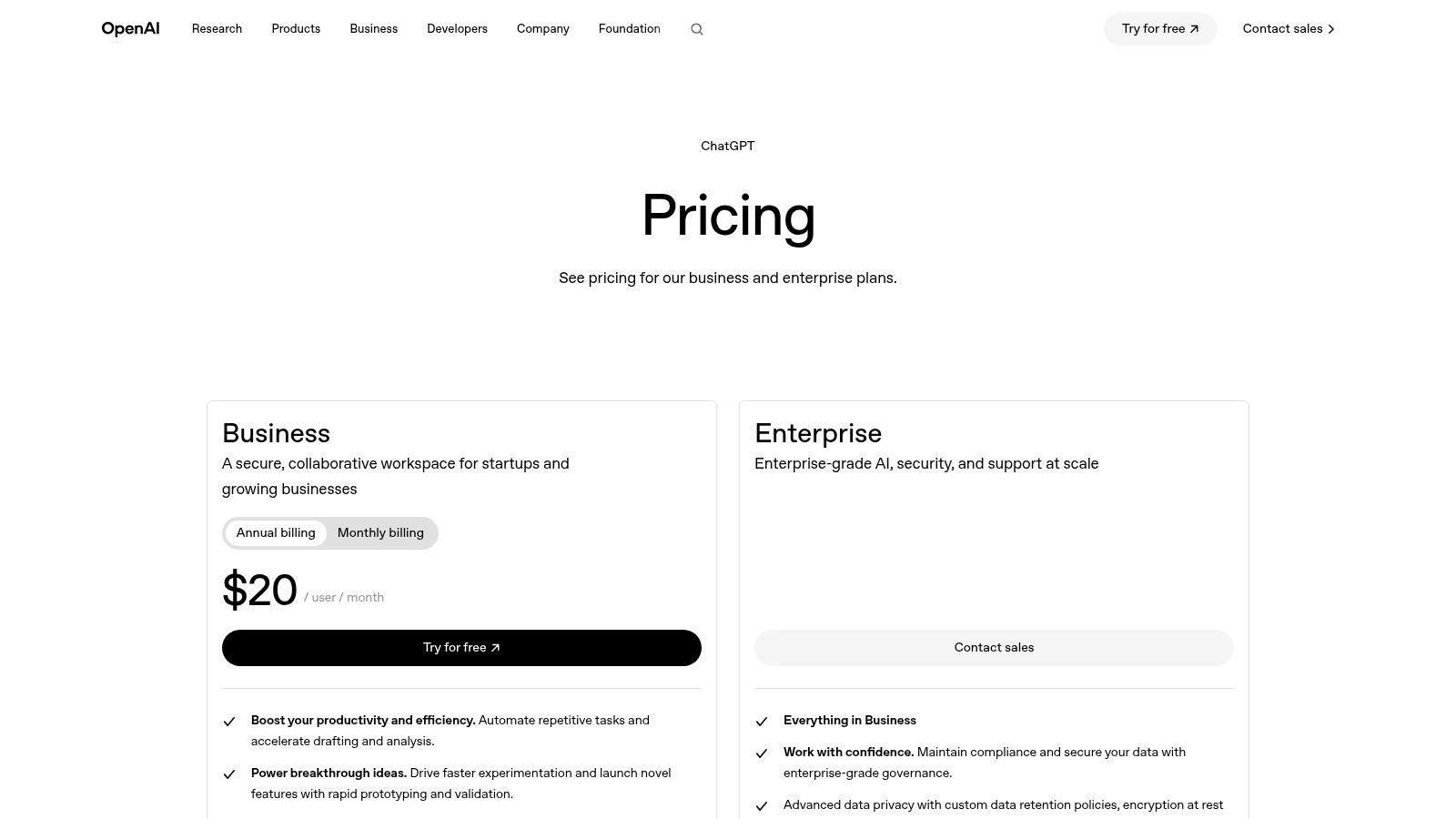
The business plans matter here. Admin controls, privacy settings, user management, analytics, SSO, and SCIM make it better suited to company use than a personal account. That does not remove the need for internal policy. It just gives IT and operations a better starting point.
Where it can go wrong
The biggest risk is inconsistency.
Two employees can ask for the same thing and get different levels of quality because they prompt differently, paste in different context, or skip basic review. That is manageable in a pilot. It becomes expensive at scale, especially in client-facing work or internal reporting.
There is another trade-off. ChatGPT is strong as a generalist, but businesses that already live inside Microsoft 365 or Google Workspace may get faster adoption from tools embedded in those environments. ChatGPT can still be the better choice if flexibility matters more than native integration, but that decision should be made on purpose.
First steps for beginners
Start with three company-approved use cases that are easy to review and hard to damage. Good examples include meeting prep, first-draft writing, internal summaries, FAQ creation, and template building.
Then create a short operating playbook:
- Approved tasks: First drafts, summaries, brainstorming, internal research, and rewriting for clarity.
- Restricted tasks: Legal review, HR matters, regulated data, customer-sensitive information, and final decisions without human review.
- Shared prompts: Save a small prompt library for common tasks so output gets more consistent across the team.
- Review rule: Require human editing before anything goes to a client, candidate, or customer.
This is the practical beginner lesson. ChatGPT is often excellent at helping teams start. It becomes much more useful once the business decides what "good use" looks like.
See the current options at ChatGPT business pricing.
4. Anthropic Claude Teams and Enterprise
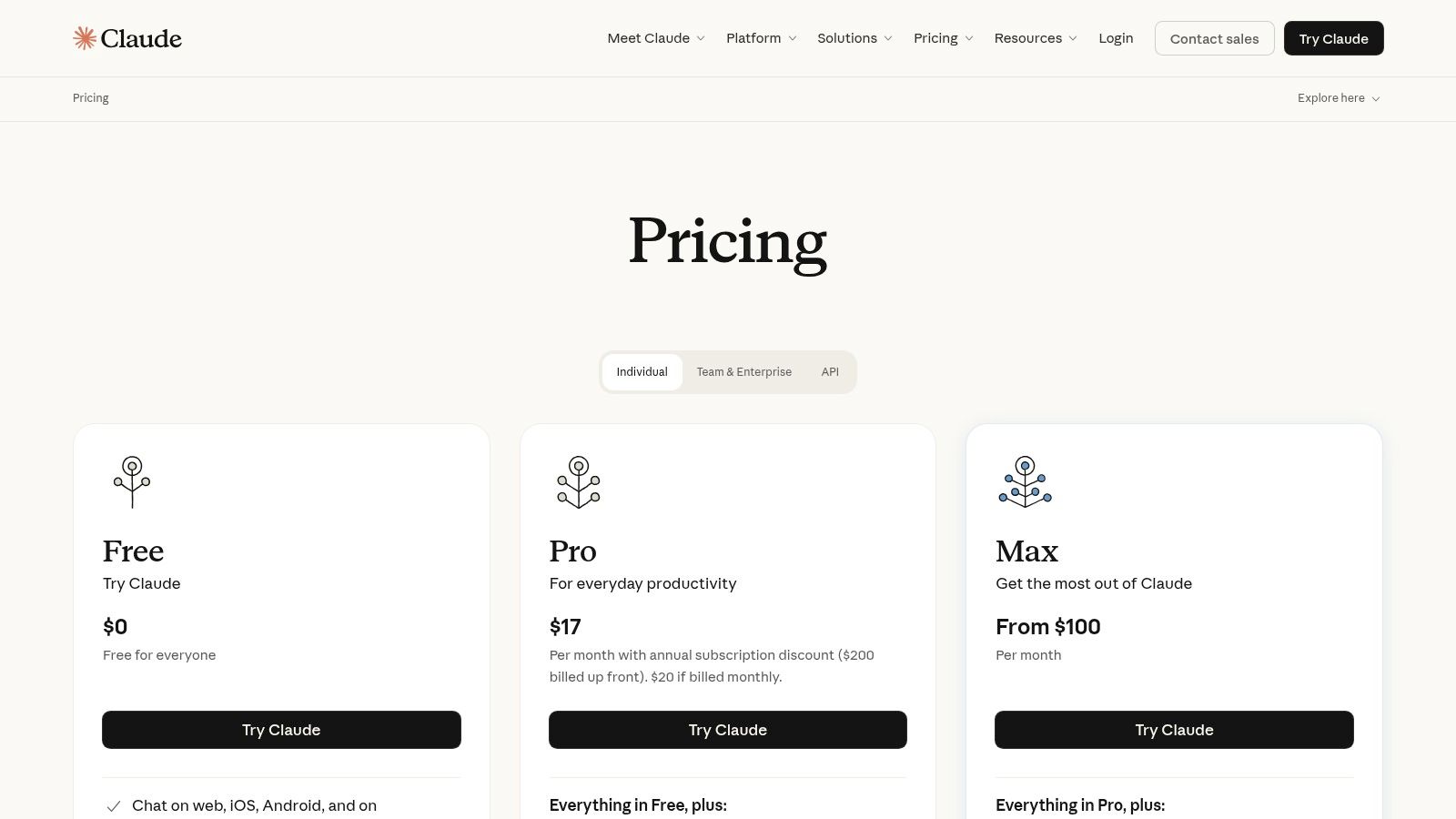
Claude is the tool I’d hand to people who write for a living, think through long documents, or need calmer, more careful output. It has a reputation for strong writing and thoughtful reasoning, and in practice that tends to hold up well for business use.
Not every team needs that. If your main task is short CRM notes or quick email cleanup, Claude may feel like overkill. But if your business handles policy documents, research memos, long proposals, or nuanced client communications, it’s often a strong fit.
Best for writing-heavy teams
Claude tends to work best in a few specific environments:
- Consulting and strategy teams: Long briefs, synthesis, and internal reports.
- Marketing leaders: Brand-sensitive drafting where tone matters.
- Operations and policy teams: Reviewing dense documents and summarizing them clearly.
- Technical teams: Using Claude Code for programming help alongside broader business writing.
What I like here is restraint. Claude usually does better when the task needs synthesis rather than speed. It often produces a cleaner first draft than tools that sound more eager but less disciplined.
"Use Claude when the cost of a sloppy answer is higher than the cost of spending an extra minute reviewing it."
The trade-offs
Team pricing and availability can vary by region, and exact per-seat pricing is often shown in-app. That makes budgeting a little less straightforward than tools with simpler public packaging.
Claude is also not the best default choice for broad beginner rollouts if your company needs heavy integration with email, meetings, and spreadsheets. It’s more of a strong specialist than an all-in-one office layer. For many businesses, that’s fine. A focused tool is often easier to govern than one people try to use for everything.
If your team creates high-value written work and wants AI to improve clarity rather than just volume, Claude deserves a close look.
Visit Claude pricing.
5. GitHub Copilot for Business
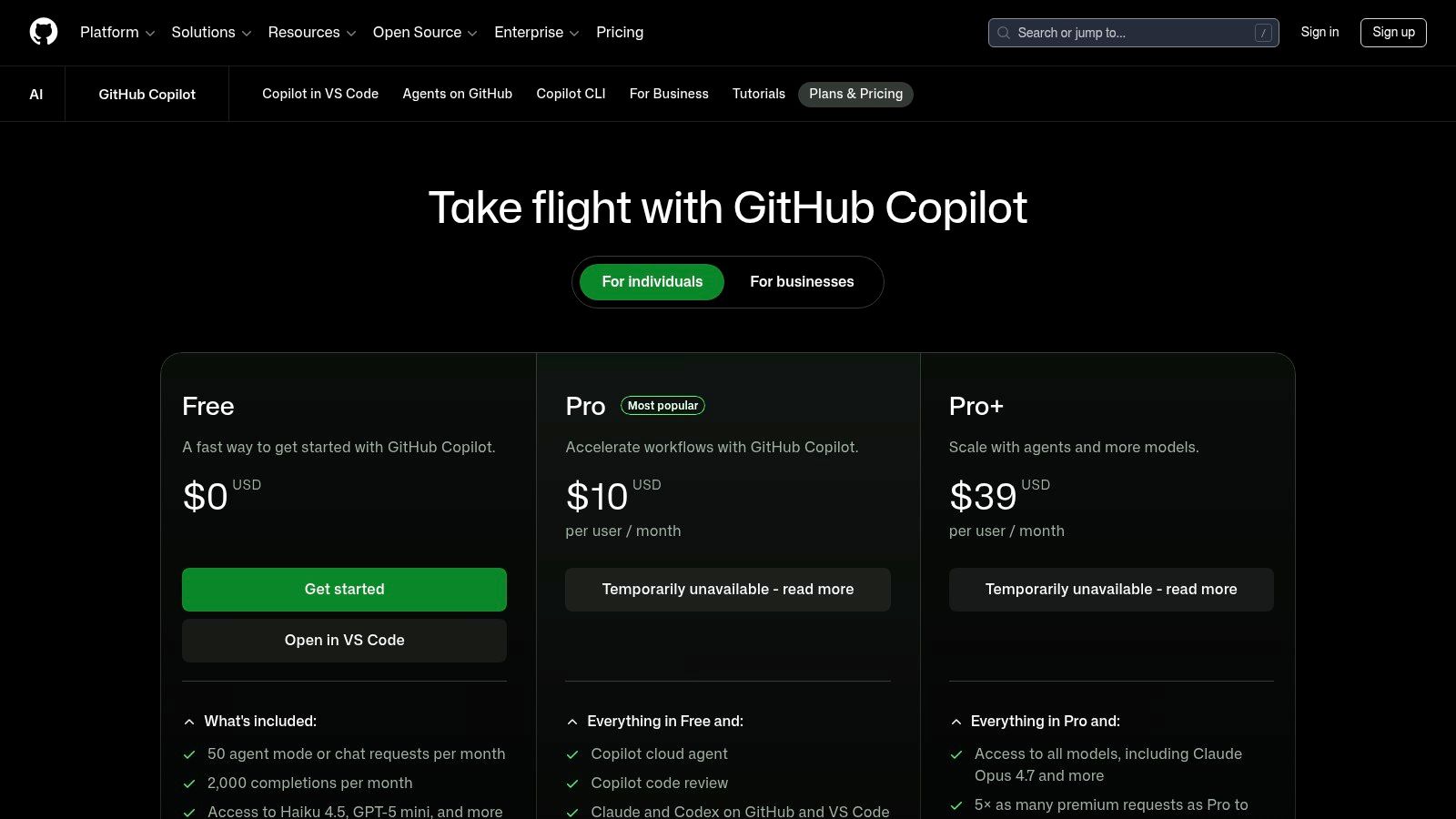
A common buying mistake looks like this. Leadership wants to "roll out AI," someone adds Copilot seats, and three months later the company wonders why only engineering sees the benefit. GitHub Copilot for Business works best as a function-specific tool for software teams, not a company-wide assistant.
That is not a weakness. It is the reason to buy it.
Copilot helps where developer time is expensive and repetitive work slows delivery. Teams usually see the clearest gains in boilerplate code, unit tests, documentation, refactoring, and quick explanations of unfamiliar files. Junior developers often use it to get unstuck faster. Senior developers tend to use it more selectively, usually for acceleration rather than generation.
Where the value is real
The strongest use case is an engineering team already shipping product on a regular cadence. If developers spend most of the day inside VS Code, JetBrains, GitHub, or the command line, Copilot fits naturally into the workflow. That matters more than broad AI hype. Tools adopted inside the place work already happens are easier to turn into habit.
I also like Copilot for onboarding. A new engineer can ask for explanations of a legacy function, draft a test for an old module, or scaffold a small internal tool without waiting on a teammate for every step. That does not remove the need for mentoring, but it reduces low-value interruptions.
The trade-offs
Copilot suggests code. Your team still owns the codebase.
It will not make architecture decisions, catch every security issue, or understand product context unless the prompt gives enough detail. It can also produce code that looks plausible and is wrong in subtle ways. That is why review discipline matters more after adoption, not less.
The business version makes more sense when you want administrative controls and a clear rollout path, not just individual subscriptions. If you are evaluating it as part of this guide's consultant playbook, put it under engineering productivity, not general office AI.
First steps
A practical rollout is usually small at first:
- Start with one product squad or platform team for 30 days.
- Set approved use cases such as test writing, boilerplate, code explanations, and refactoring support.
- Require human review for every generated change.
- Ask team leads to document where it saved time and where it created cleanup work.
- Expand only after you see real usage patterns.
That last point matters. Some engineers will use Copilot constantly. Others will use it for narrow tasks and ignore it the rest of the day. Both behaviors can be reasonable if code quality stays high.
This is a strong tool for businesses with active software development. It is far less relevant for teams outside product and engineering, so buy it with a targeted implementation plan instead of treating it as an all-hands AI program.
See the plans at GitHub Copilot plans.
6. Slack AI
Monday morning often starts the same way. A director opens Slack to find 200 new messages, three active project threads, and a customer issue that was discussed late the night before. The problem is not message volume by itself. The problem is that decisions, context, and next steps are buried inside chat.
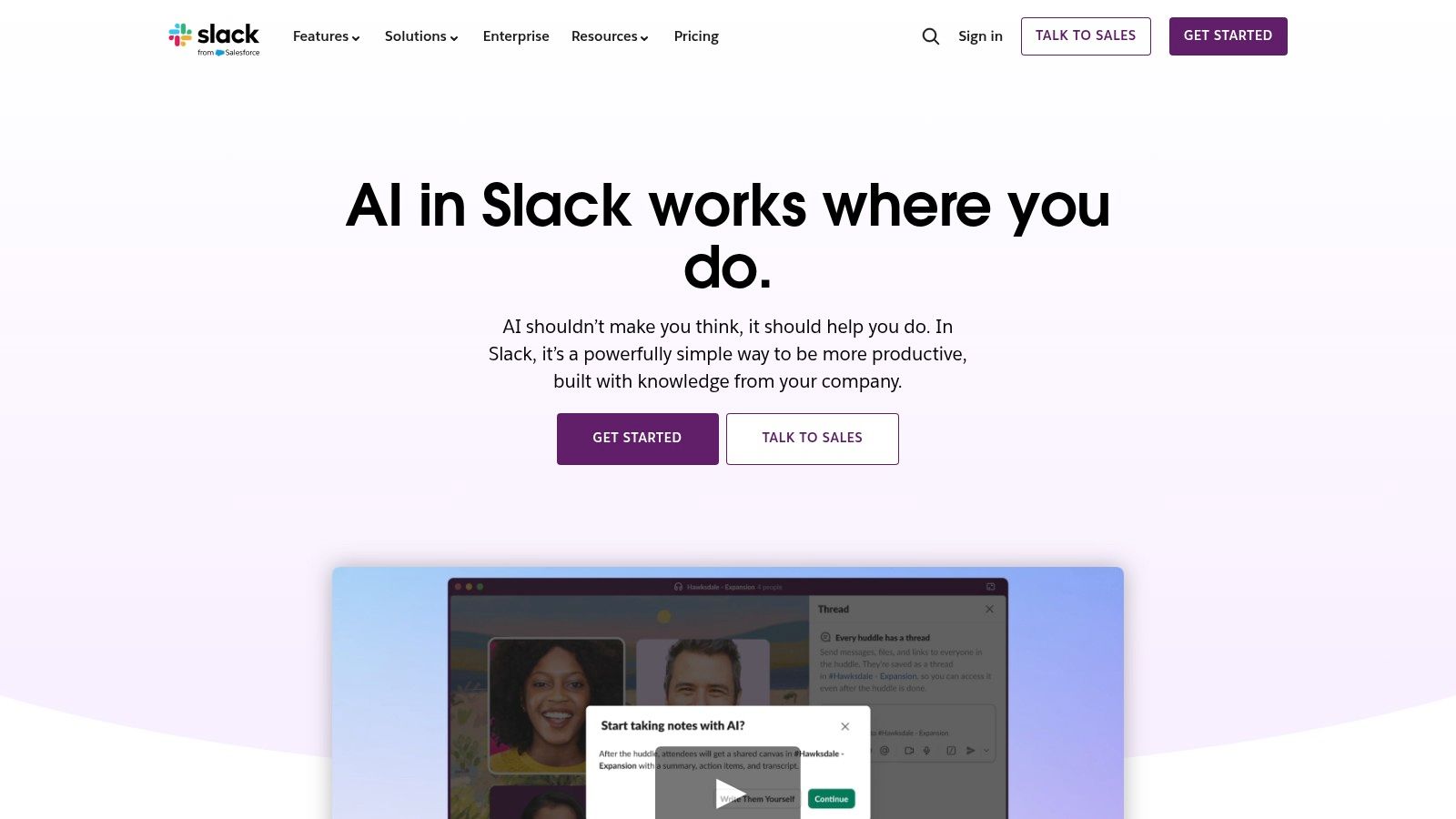
Slack AI is a practical fit for businesses that already run day-to-day work in Slack. Channel recaps, thread summaries, and AI-powered search help people catch up faster without switching to a separate assistant and pasting in context manually. For busy teams, that saves time in small increments all day.
Best for communication-heavy teams
I usually place Slack AI under internal operations and team coordination in a business AI plan. It is strongest when the bottleneck is communication overload, not content creation or CRM work.
A department lead can review a long channel before a status meeting. A project manager can summarize a thread and turn it into clear follow-up tasks. A new hire can ask a plain-language question and surface relevant messages or files without knowing the exact channel history first.
That is the core value. Slack AI shortens the time between "something was discussed" and "the right person understands it."
Where it works, and where it does not
Slack AI helps teams recover context. It does not fix messy collaboration habits.
If channel naming is inconsistent, if key files live in random places, or if important decisions never leave chat, the AI will still return a partial picture. That is the trade-off with any tool built on top of existing communication data. Better inputs lead to better outputs.
Teams considering Slack AI should also think about where chat fits in the broader future of artificial intelligence in business. The winning pattern is usually simple. Use AI to speed up retrieval and summarization, then move durable decisions into docs, ticketing systems, or project records.
First steps
A beginner-friendly rollout is usually light:
- Pick 2 or 3 teams with heavy Slack usage, such as operations, project management, or customer support.
- Clean up channel names and archive channels nobody owns.
- Define which information should stay in Slack and which should be documented elsewhere.
- Ask managers to use summaries for one recurring workflow, such as weekly project catch-up or handoffs after time off.
- Review after 30 days. Look for time saved, missed context, and whether people trust the summaries.
Slack AI is not the flashiest tool in this guide. It is one of the easier ones to justify when the business already lives in Slack, because the benefit shows up in faster handoffs, fewer repeated questions, and less time spent digging through threads.
Check availability at Slack AI features.
7. Salesforce Einstein 1
A common scenario looks like this. Leadership wants AI to help sales and service teams move faster, but reps already spend too much time updating records, managers do not trust pipeline data, and nobody wants another tool that sits outside the CRM. In that setup, Salesforce Einstein 1 is often the practical choice because it keeps AI close to the customer record, workflow rules, and permissions the business already uses.
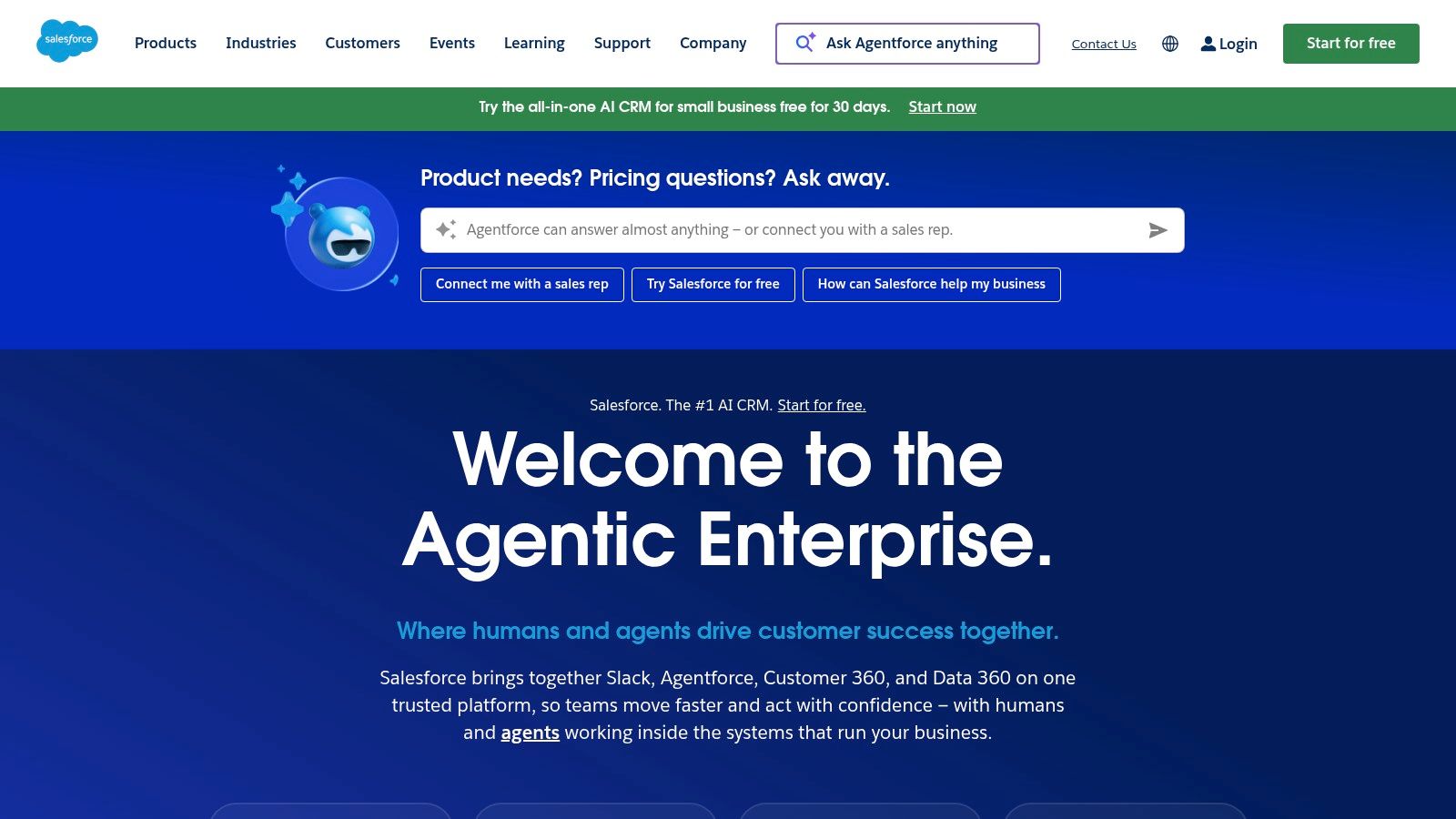
Einstein 1 fits companies that already run revenue operations in Salesforce and want AI inside daily execution. That includes rep assistance, account and opportunity summaries, service context, predictive support, and low-code tools for building prompts and actions tied to Salesforce data. For beginners, that matters. The fastest path to useful AI is usually inside a system your team already touches all day.
Best for CRM-centered operations
Einstein 1 is strongest when Salesforce is the operating system for customer-facing work, not just a database managers review at quarter end.
- Sales teams: Generate call summaries, suggest next steps, and reduce manual CRM work.
- Service teams: Pull customer history together faster so agents can handle cases with better context.
- Revenue operations: Keep AI tied to existing objects, approval flows, and security controls.
- Commerce and account teams: Use AI in customer journeys that already depend on Salesforce records and automation.
A key advantage is fit. A rep should not have to copy notes into one tool, ask questions in another, then return to Salesforce to do the actual work. AI adoption goes up when the tool saves clicks inside the workflow people already follow.
The honest downside
Salesforce can get expensive quickly. Features vary by edition, cloud, and add-on, so buyers need to map desired use cases to actual licensing before promising a rollout. I have seen teams buy into the vision, then slow down because the budget covered experimentation but not full deployment.
Data quality is the other constraint. If opportunity stages are inconsistent, contact records are thin, or service teams bypass the system, Einstein will still produce output, but users will question it. That is a trust problem, not just a technical one.
For teams planning beyond simple productivity gains, Salesforce also supports a larger shift toward AI-assisted workflows and process redesign. That fits the broader trend discussed in the future of artificial intelligence in business, especially for companies that already treat CRM data as a core business asset.
First steps
A sensible rollout starts small and stays close to one business problem.
- Pick one workflow with clear friction, such as opportunity updates, call summaries, or case handoffs.
- Audit CRM hygiene before turning on AI. Bad fields and duplicate records weaken output fast.
- Define which teams need access and which actions should stay human-reviewed.
- Test with a small group of reps or agents for 30 days.
- Measure admin time saved, data quality changes, and whether managers trust the output enough to use it.
Learn more at Salesforce.
8. HubSpot AI
A common small business setup looks like this. Marketing runs email in one tool, sales tracks deals in another, support answers customers somewhere else, and no one fully trusts the reporting. HubSpot AI is a practical fix for that kind of sprawl because it puts CRM, marketing, sales, and service work in the same system.
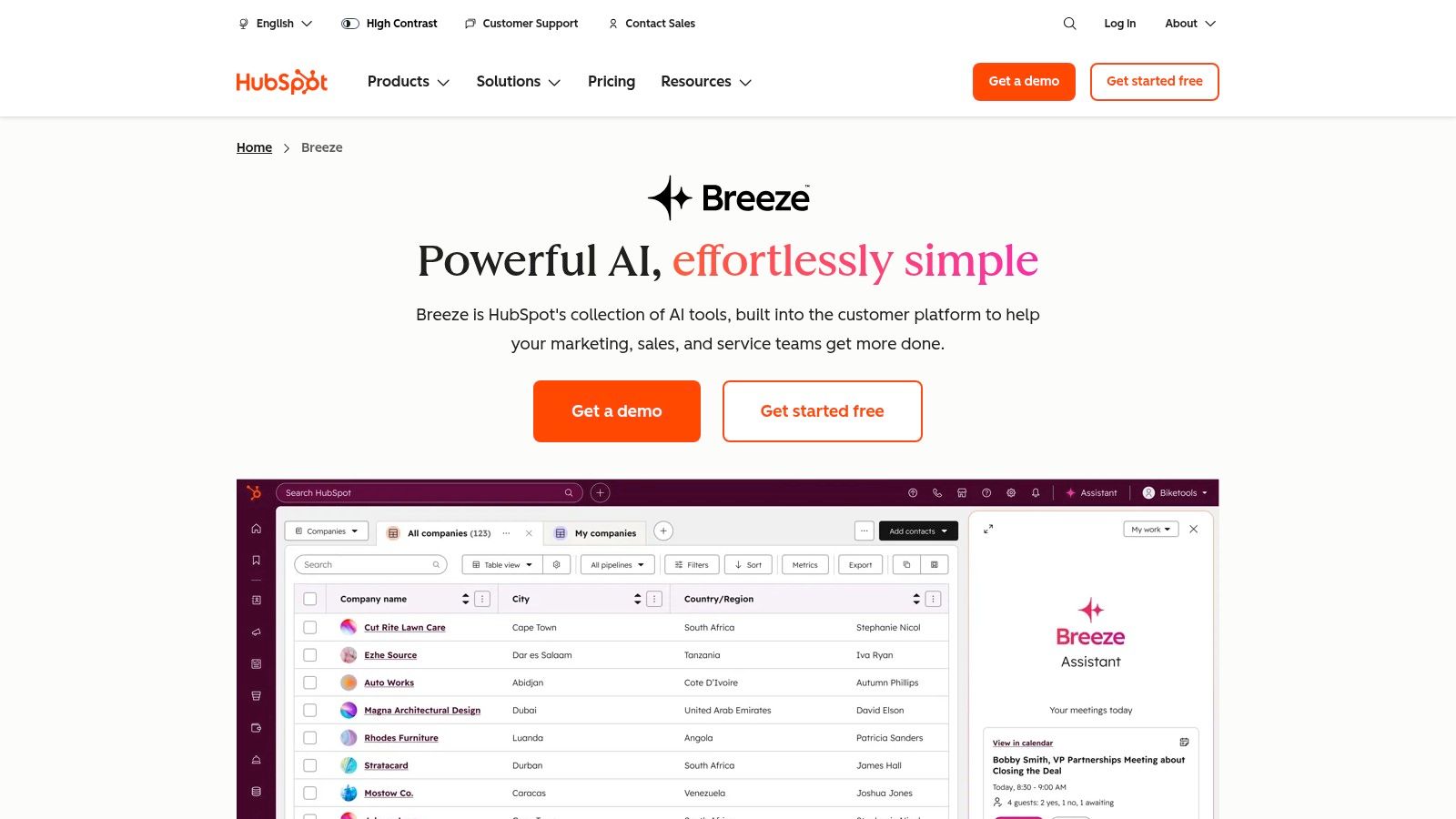
That is why I usually recommend HubSpot to smaller teams that want to get started quickly. The AI features are useful, but the bigger advantage is operational. Staff are working from the same contact record, the same pipeline, and the same campaign history, which makes the AI output more usable.
Why SMB teams like it
HubSpot works well for businesses that need help across several functions at once. Its AI can assist with writing marketing content, summarizing sales activity, supporting chat and service workflows, and improving CRM data quality. For a beginner, that matters more than having the most advanced model in each category.
It also fits the playbook approach of this guide. Instead of buying separate AI tools for every department, a business can start with one shared platform and solve a few concrete problems first. That might mean drafting follow-up emails, summarizing contact records, or building simple AI automation for businesses inside existing customer workflows.
The trade-offs beginners miss
HubSpot can feel affordable at the start and more expensive once the team wants broader access, higher usage, or more advanced features. Some AI capabilities depend on plan level, credits, or product bundle changes. Buyers should map the first six to twelve months of use before they assume the starter setup will cover a full rollout.
Governance is the other issue. If staff use AI inside customer emails, notes, and support conversations, someone needs to decide what data is allowed in prompts, who can publish AI-written content, and how records should be reviewed. Small businesses often skip that step because the tool is easy to use.
HubSpot is still one of the better entry points for beginners. It is especially strong for companies that want one system to support marketing, sales, and service without stitching together a more complex stack.
Explore it at HubSpot AI products.
9. Zapier Automation and AI Actions
A common beginner problem looks like this. The team uses ChatGPT, Claude, or built-in AI features to draft summaries and replies, then someone still has to copy the result into the CRM, create a task, alert the right person, and update a spreadsheet. That manual handoff is where work stalls.
Zapier is a strong fit when a business wants AI to trigger business actions, not just produce text. It connects the tools a team already uses and lets workflows run on rules the business can review, test, and adjust. In practice, that means fewer dropped tasks, faster follow-up, and less time spent re-entering the same information in five places.
Where it fits in the playbook
I recommend Zapier most often for companies that already have a patchwork stack. A form lives in one app, the CRM lives in another, support requests arrive somewhere else, and internal notifications happen in Slack or email. Zapier helps tie those steps together so the process is consistent even when the software stack is not.
Good use cases include:
- Lead routing: Send a form submission into the CRM, assign an owner, and notify sales.
- Support operations: Turn an inbound issue into a ticket, post the context to Slack, and log the case in the right system.
- Post-meeting follow-up: Take an AI summary, store it, tag it, and create next-step tasks automatically.
- Back-office admin: Move approved data between billing, project management, and reporting tools.
The value here is operational. Teams get more from AI when the output reaches the next system without waiting for a person to paste it there. If you are evaluating this category broadly, this guide to AI automation for businesses shows the kinds of workflows worth starting with.
The trade-offs beginners miss
Zapier is easy to start and easy to overbuild.
Poorly designed automations can create duplicate records, route bad data into downstream systems, or fire too often and annoy the team. AI steps add another layer of risk because prompts, field mapping, and exceptions all need testing. If the workflow touches customers, finance, or compliance-sensitive data, someone should review what the AI is allowed to write and what still needs human approval.
Cost needs a quick check too. Multi-step workflows, premium app connections, and higher task volume can push usage up faster than a small team expects.
First Steps
Start with one repeated workflow that already has a clear owner and a clear success measure.
A good first build might be: website form submission, create CRM record, enrich or classify the lead, notify the assigned rep, and create a follow-up task. Keep the logic simple. Test edge cases. Confirm who fixes errors when the automation fails.
That approach matches the consultant playbook behind this guide. Pick one business function, remove one bottleneck, and prove the result before automating more of the process.
See the current options at Zapier pricing and plans.
10. Zoom AI Companion
Zoom AI Companion is one of the easiest tools to justify because it solves an obvious annoyance. Too many meetings produce too many notes, and no one wants to be the person writing action items while everyone else talks.
For businesses already paying for Zoom Workplace, this is a practical add-on to daily operations. Meeting summaries, follow-up support, and drafting help reduce the note-taking burden and make follow-through more consistent.
Where it earns its keep
Zoom AI Companion is most useful for:
- Client-facing teams: Capture commitments and next steps after calls.
- Managers: Review summaries instead of relying on memory.
- Cross-functional teams: Keep decisions visible when not everyone attends every meeting.
I like this tool best for organizations that don’t need a large AI strategy to start getting value. It’s one of the rare cases where a small workflow improvement can create a better team habit almost immediately.
The limits
Feature availability depends on the plan and product mix, and newer agentic features may roll out gradually. So while many AI Companion features are included with eligible paid plans, businesses should still confirm what their specific account supports.
The other limit is behavioral. A meeting summary doesn’t fix a bad meeting culture. If calls have no agenda, unclear ownership, or too many attendees, AI will document the confusion very efficiently. It won’t solve it.
Still, this is one of the safest beginner bets in the market. It’s easy to explain, easy to test, and easy to value once teams stop losing decisions in post-meeting fog.
Visit Zoom AI Companion details.
Top 10 Business AI Tools, Feature Comparison
| Product | Core features | Quality (★) | Value / Pricing (💰) | Target audience (👥) | Unique selling point (✨/🏆) |
|---|---|---|---|---|---|
| Microsoft Copilot for Microsoft 365 | Drafting & summaries in Office, Excel analysis, Teams recaps, enterprise controls | ★★★★ | 💰 License-dependent; Copilot add‑on | 👥 Microsoft 365 orgs & enterprise IT | ✨ Deep native Office integration; 🏆 Enterprise security (Entra ID) |
| Google Gemini for Workspace | "Help me write" in Gmail/Docs, Sheets formulas, Slides generation, Meet summaries | ★★★★ | 💰 Varies by Workspace edition; advanced tiers/add‑ons | 👥 Google Workspace-centric teams | ✨ Seamless Google app integration; 🏆 Admin-managed rollout |
| OpenAI ChatGPT for Business | Advanced models, higher usage, SSO/SCIM, privacy & retention controls | ★★★★★ | 💰 Per‑seat/enterprise pricing via sales; flexible tiers | 👥 Teams needing general-purpose AI with governance | ✨ Strong model quality & rapid updates; 🏆 Robust enterprise controls |
| Anthropic Claude (Teams & Enterprise) | Long-context doc/image analysis, Claude Code, web/desktop/mobile apps | ★★★★ | 💰 Region & plan-based pricing; in‑app quotes | 👥 Teams needing long-context analysis & careful writing | ✨ Large context window & carefulness; 🏆 Excellent writing/reasoning |
| GitHub Copilot for Business | IDE autocomplete, code chat, test generation, org policy controls | ★★★★★ | 💰 Simple per-seat pricing; high developer ROI | 👥 Software developers & engineering teams | ✨ Deep IDE integration & refactors; 🏆 Tangible dev productivity gains |
| Slack AI | Channel/thread summaries, AI search across messages/files, message drafting | ★★★★ | 💰 Varies by Slack plan; some features tiered | 👥 Teams using Slack as primary communication hub | ✨ Works inside existing workflows; 🏆 Frictionless knowledge retrieval |
| Salesforce Einstein 1 (Copilot & Studio) | Copilot in CRM, low-code prompts, prediction builder, GPT-enabled features | ★★★★ | 💰 Modular & complex pricing; many add‑ons | 👥 Organizations running Salesforce for sales/service/commerce | ✨ Native CRM-embedded AI; 🏆 Deep Salesforce data access for workflows |
| HubSpot AI | AI content assistants, automations, website builder, data cleanup | ★★★ | 💰 SMB-friendly; advanced AI may require higher tiers/credits | 👥 SMBs & mid-market marketing/sales teams | ✨ Integrated CRM + marketing AI; 🏆 Fast to deploy for small teams |
| Zapier (Automation + AI Actions) | No-code Zaps, AI Actions API, governance & logging across 6,000+ apps | ★★★★ | 💰 Tiered pricing; heavy/advanced usage needs higher plans | 👥 Automation builders, ops & support teams | ✨ Massive integration library; 🏆 Enables auditable AI-triggered actions |
| Zoom AI Companion (Workplace) | Meeting & chat summaries, action items, drafting and workflow assists | ★★★★ | 💰 Included with many paid Zoom Workplace plans; feature varies | 👥 Meeting-centric teams & account executives | ✨ Built into Meetings & Chat; 🏆 Reduces note-taking burden and speeds follow-up |
Don't Wait for a Perfect Strategy, Just Start
Monday morning. The sales manager wants faster follow-up after calls. Support is tired of digging through Slack threads for answers. Marketing wants help getting first drafts out without adding another app nobody will use. That is usually the right moment to start with AI, because the problem is already clear and the team already feels the friction.
The mistake I see is treating AI selection like a long procurement exercise before anyone tests a real workflow. Comparing ChatGPT to Claude, or Copilot to Gemini, can help narrow the field. It does not tell you how your team will use the tool in practice on a busy Wednesday. A small pilot does.
Start with one business function, not a broad transformation plan. This guide is built like a consultant's playbook for that reason. The useful question is not "Which AI tool is best?" It is "Which tool solves one expensive, repetitive problem with the least disruption to current work?"
For beginners, embedded tools usually win first. Microsoft Copilot, Google Gemini, Slack AI, Zoom AI Companion, HubSpot AI, and Salesforce Einstein all sit close to work people already do. That matters. If staff have to leave their normal systems, copy data into a separate tool, and remember a new process, usage drops fast.
A narrow pilot keeps the risk low and the learning high. Pick one team, one task, one tool, and one owner. Record a simple baseline before the test starts, such as time spent writing follow-ups, turnaround time on internal answers, or number of manual handoffs in an ops process.
Good first pilots usually look like this:
- Sales follow-up: Use Salesforce Einstein, HubSpot AI, or ChatGPT to turn call notes into recap emails and next-step drafts.
- Internal communication: Use Slack AI or Microsoft Copilot to summarize long threads, meetings, and shared documents.
- Marketing production: Use Gemini, HubSpot AI, or ChatGPT for first drafts of briefs, nurture emails, and campaign copy.
- Operations handoffs: Use Zapier to automate form routing, CRM updates, or repetitive support triage.
Run the test for one week. Then review it like an operator, not a fan. Did people use it? Did it save measurable time? Were the outputs good enough to reduce manual editing? Did the tool fit the team's existing workflow, or did it add new friction?
That last question matters more than feature count. A tool with fewer features inside the systems your team already uses often outperforms a more capable standalone tool that nobody remembers to open.
Governance should show up early, but it does not need to slow down a basic pilot. If the test involves meeting summaries or low-risk drafting, keep the rules simple and written down. If employees are using customer data, internal files, hiring information, or CRM records, define approved tools, data boundaries, review requirements, and who owns the rollout.
For smaller teams, prebuilt products are usually the better first move because setup is faster, support is easier, and the failure cost is lower. Custom systems make more sense later, after you know which workflow is worth improving and what data the model needs. If you need a broader planning framework, this roadmap for AI initiatives is a useful way to think about sequencing.
Delay is the main risk. Teams that start with one controlled use case build habits, documentation, and internal confidence. Teams that wait for a perfect strategy usually stay stuck in tool comparisons.
Pick one problem. Assign one owner. Test one tool this week.
If you want practical help choosing, testing, and implementing ai tools for business, YourAI2Day is a solid place to keep learning. The site covers AI news, tool reviews, implementation guidance, and business-focused insights without assuming you’re already an expert.