Best Computer for AI: 2026 Ultimate Hardware Guide
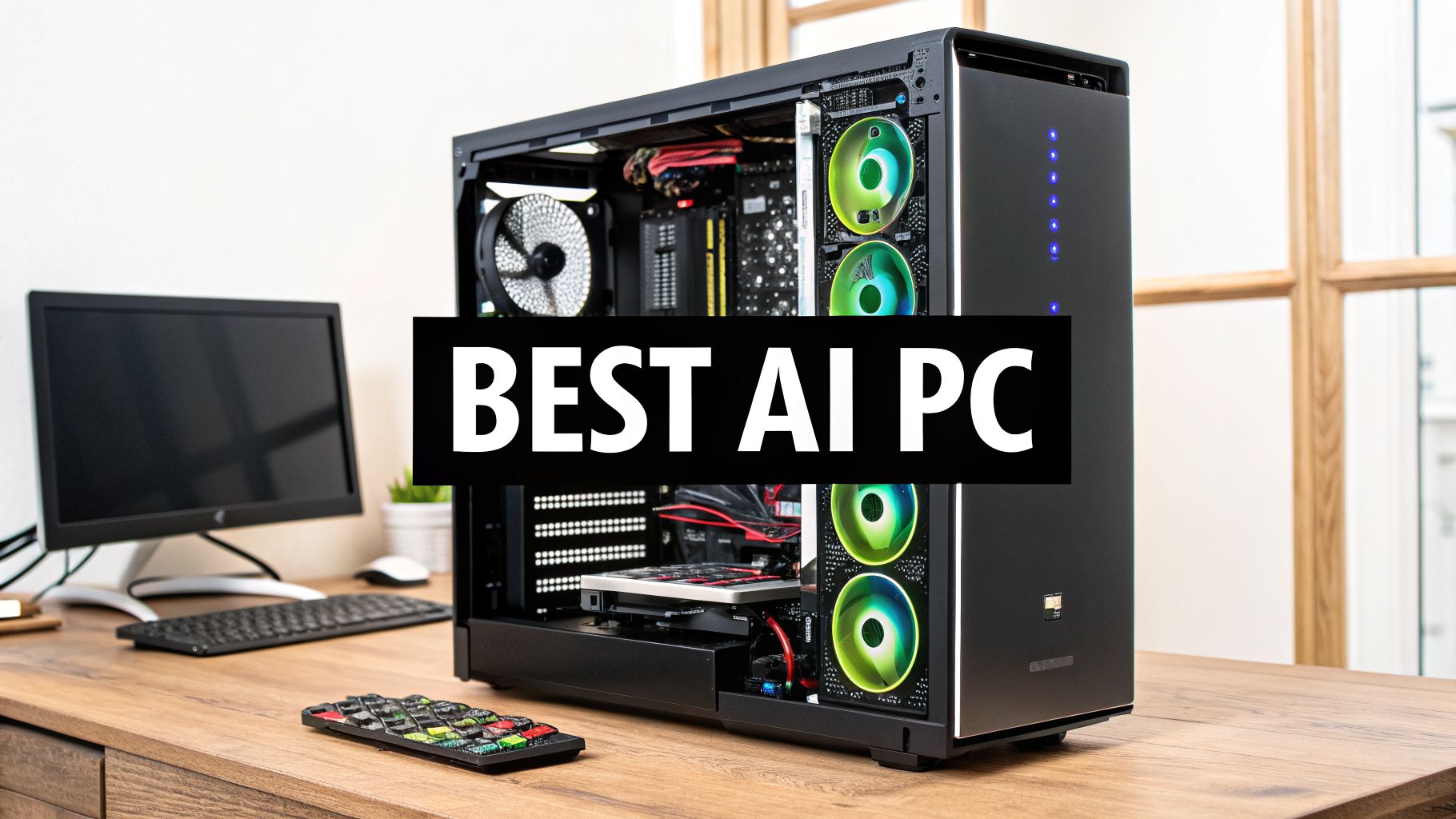
So, you're wondering what the best computer for AI is? It's a question I get all the time, and my answer almost always starts with one super-important part: the Graphics Processing Unit (GPU). Think of it as the engine of your AI car. Sure, your average laptop can handle some fun stuff like AI art generators, but if you're getting serious about building or training your own AI models, you'll need a machine with a bit more muscle. The computers that really shine for heavy-duty AI are desktops packed with powerful NVIDIA GPUs, like the much-loved RTX 4090 or the shiny new RTX 5090.
Choosing Your Ideal AI Computer
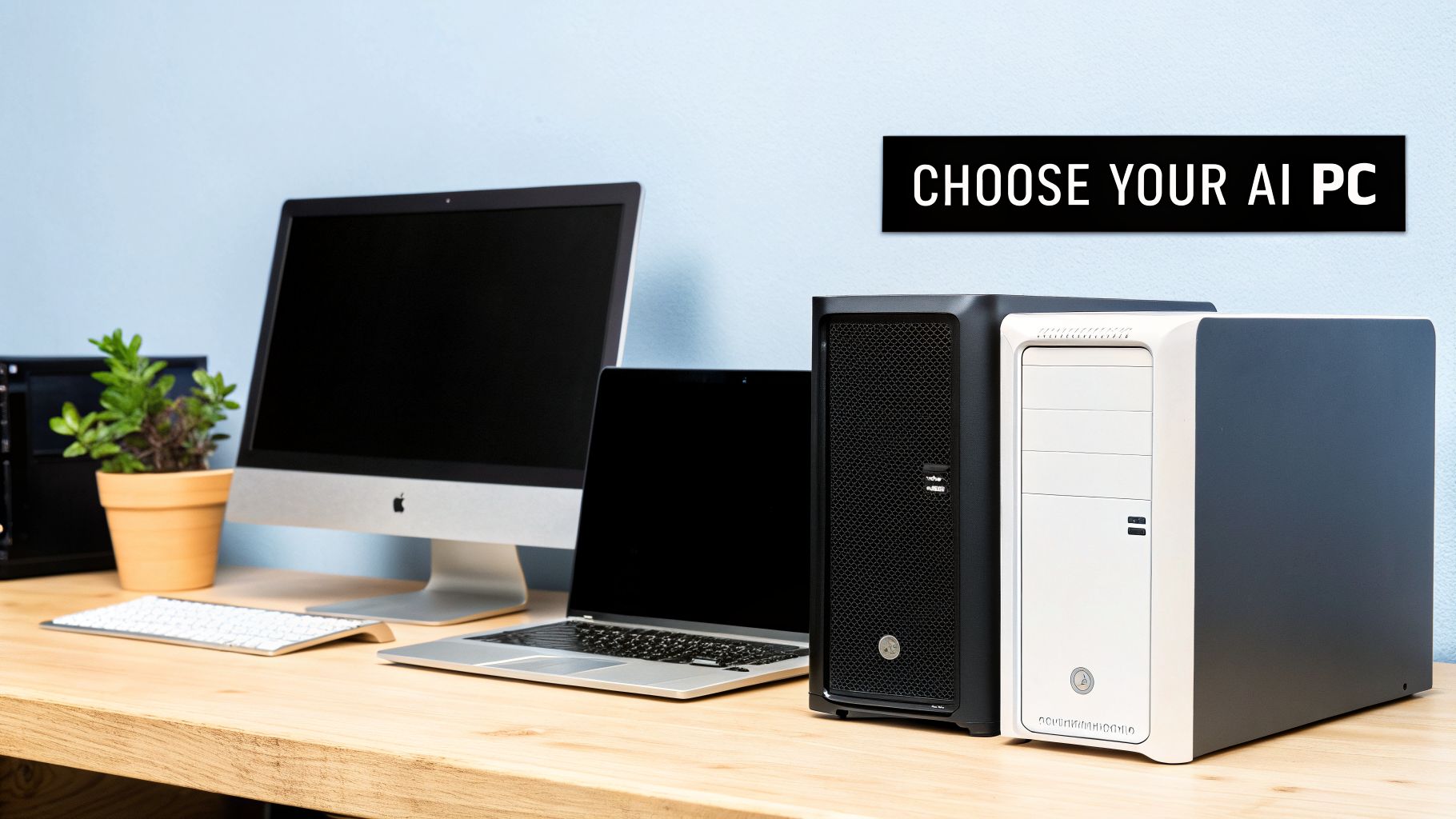
Trying to find the perfect computer for AI in 2026 can feel a bit overwhelming, but don't worry! It really just boils down to what you want to do. Are you a curious beginner who wants to play around with tools like Stable Diffusion to create cool images? Or are you a developer itching to train your first deep learning model? Matching the hardware to your goals is the secret to having a good time and not wanting to throw your computer out the window.
This guide will break down the essential components—GPU, CPU, and RAM—and show you what really matters in plain English. For anyone just starting out, we'll explain exactly why a powerful GPU is the absolute heart of any worthwhile AI machine.
Expert Opinion: As robotics pioneer Rodney Brooks once said, technology rarely moves in a straight line. While all the buzz is about giant AI models running in the cloud, having a well-built computer at home gives you the freedom to tinker, experiment, and break things without a ticking clock or a running bill. That freedom is where the real learning and innovation happens.
To help you get started, the table below gives you a quick snapshot of how different AI goals line up with different types of computers. Think of it as your friendly starting point for picking a system that will help you grow, not hold you back.
Matching Your AI Goals to the Right Computer
This table offers a simple way to connect your ambitions with the right class of hardware.
| Your Experience Level | Common Projects | Recommended Machine |
|---|---|---|
| Beginner / Hobbyist | Running pre-trained models, generating AI art, basic coding practice. | Mid-Range Desktop or AI-Ready Laptop |
| Prosumer / Developer | Fine-tuning smaller models, running local LLMs, serious development. | High-End Desktop with a powerful GPU |
| Professional / Researcher | Training large, complex models from scratch, extensive data processing. | Dedicated AI Workstation or Local Server Setup |
Ultimately, choosing the best computer for AI is a balancing act between your budget and your project's demands. In the next sections, we'll dive into the nitty-gritty of the hardware you need to build, buy, and start creating.
Understanding the Hardware That Powers AI
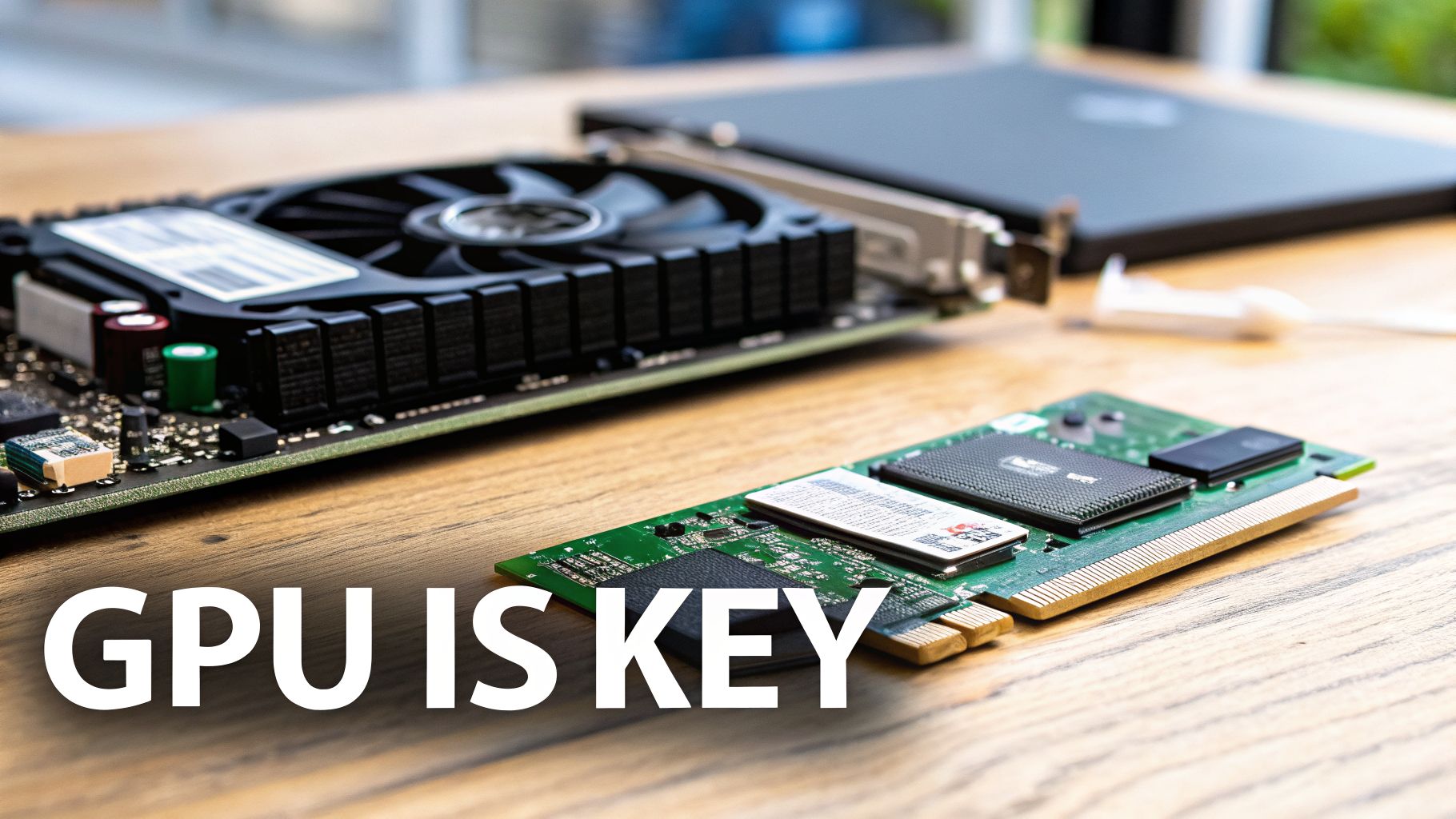
When you get right down to it, a computer built for AI is a specialized number-crunching machine. It’s designed to do one thing incredibly well: process a mind-boggling amount of data at lightning speed. And at the center of this universe, one component is king: the Graphics Processing Unit (GPU).
GPUs were originally invented to render beautiful, complex worlds in video games. But it turns out, the type of math they do is also perfect for AI. Training an AI model involves millions of calculations happening all at once, a task we call parallel processing. A GPU is like having an army of tiny calculators all working together on the same problem, making it the perfect tool for the job.
The Unbeatable Advantage of NVIDIA GPUs
As you start looking for parts, you'll see one name pop up everywhere: NVIDIA. This isn't just good marketing; there's a solid technical reason why they're on top. The secret sauce is a software platform called CUDA (Compute Unified Device Architecture). Think of CUDA as a special language that lets AI developers talk directly to the GPU's processing cores, unlocking their full power.
This direct line of communication is a total game-changer. In the world of AI, NVIDIA's hardware consistently sets the performance standard. For example, their Tesla V100 GPUs became the benchmark for deep learning performance back in 2017-2018. The V100 SXM2 32GB model achieved a jaw-dropping training score of over 18,000, helping NVIDIA capture over 80% of the AI hardware market by 2020. You can even check out the full rankings on AI-Benchmark.com to see just how crucial GPU power is.
Modern NVIDIA GPUs take this even further with dedicated Tensor Cores. These are even more specialized circuits built specifically for the kind of math AI loves. They provide a massive performance boost, turning tasks that might take days on a normal computer into a matter of hours. It’s no surprise that nearly all major AI software and machine learning frameworks are optimized for NVIDIA hardware first.
Expert Insight: "A GPU without enough VRAM is like a brilliant mathematician who can only remember one number at a time. It doesn't matter how fast they are if they can't hold the whole problem in their head."
That brings us to a super important detail that can make or break your build: VRAM (Video Random Access Memory). This is the GPU's own private, ultra-fast memory. When you're training an AI model, the model itself and the chunk of data you're feeding it have to fit inside this VRAM. If you run out, the process either slows to a crawl or just crashes. For a beginner just playing around, 8GB of VRAM might be okay. But for anyone serious about training their own models, 24GB is the real starting line.
The Supporting Cast: CPU, RAM, and Storage
While the GPU gets all the glory, it can’t do its job alone. Think of the rest of your computer parts as the GPU's support crew, making sure it's never waiting around for data. A bottleneck anywhere else means your expensive GPU is just sitting there, twiddling its thumbs.
Central Processing Unit (CPU): The CPU is the computer's general manager. In AI, its main job is to get data ready and load it up for the GPU. For example, it might resize thousands of images before the GPU starts training on them. A weak CPU will starve your GPU, no matter how powerful it is.
System RAM: This is your computer's main memory, separate from the GPU's VRAM. You need enough of it to handle your operating system, other apps, and—most importantly—the huge datasets you'll be working with. 32GB is a good minimum, but 64GB or 128GB is much better for serious projects where you might be juggling multiple large files.
Storage (NVMe SSD): AI models and their datasets can be gigantic, often hundreds of gigabytes. A fast NVMe Solid-State Drive (SSD) is non-negotiable for loading these files quickly. Using an old-school hard drive here would be painfully slow, like trying to fill a swimming pool with a garden hose.
For those aiming for the absolute best performance, especially with large language models, it's worth seeing how these pieces come together in a high-end custom-built AI LLM workstation. A well-balanced system is the real secret to building the best computer for AI.
Local PC vs. Cloud Computing for AI Projects
Before you even start picking out parts, you’ve got a bigger decision to make. Are you going to build a dedicated AI computer to keep at home, or are you going to rent power from a cloud service like Amazon Web Services (AWS), Google Cloud, or Microsoft Azure? There's no single right answer—it all comes down to your goals, your budget, and how you like to work.
For anyone just starting out or for the dedicated hobbyist, having your own local AI computer is like owning your own workshop. You have the freedom to run experiments 24/7, tinker with models, and generate endless AI art without watching a billing meter tick up. That constant, free access is amazing for the trial-and-error that's a huge part of learning and development.
You make a one-time investment in the hardware, and that's it. You own it, you control your data, and your work isn't at the mercy of a spotty internet connection or surprise price hikes from a cloud provider. For any work involving sensitive or private data, having it all on your local machine is often the deciding factor.
When the Cloud Makes More Sense
But a local setup has its limits. At some point, the sheer size of an AI task can be too much for even a high-end desktop. Let's say you want to train a massive language model over a single weekend. Buying the dozens of top-tier GPUs needed for that job would cost a fortune—easily tens or even hundreds of thousands of dollars.
This is where the cloud is a superhero. Cloud platforms give you on-demand access to a practically infinite pool of the latest, most powerful hardware. You can "rent" a virtual supercomputer for a few hours or a few days, power through your massive training job, and then shut it all down. You only pay for what you use, turning a huge upfront cost into a manageable operating expense.
For instance, a startup could rent a pod of NVIDIA H100 GPUs on AWS for 72 hours to train a foundational model—a task that would be impossible for them to afford with local hardware. This ability to "burst" for intense jobs is a primary reason businesses lean on the cloud. If you want to explore this further, our article on deployment strategies in cloud computing dives into these business models.
Expert Opinion: Scott Aaronson, a top computer scientist, often works with research centers that use both their own powerful computers and cloud services. This "hybrid" approach is a pro move: use your local machine for daily coding and experiments, then scale up to the cloud for the really heavy lifting that demands massive power.
A Practical Comparison
So, how do you choose? Let’s break it down into the factors that matter most to you.
| Factor | Local PC | Cloud Computing |
|---|---|---|
| Cost Structure | High upfront investment, no recurring compute fees. You pay for electricity. | Low or no upfront cost, pay-as-you-go recurring fees. Can become expensive for continuous use. |
| Control & Privacy | Total control. Your data stays on your machine, offering maximum privacy. | Shared responsibility. Data is on a third-party server. Good security, but requires trust. |
| Flexibility | Fixed hardware. Upgrading requires buying and installing new components. | Instant flexibility. Scale up or down to different hardware configurations in minutes. |
| Scalability | Limited to the power of your machine. Large-scale jobs can be very slow or impossible. | Massive scalability. Access vast clusters of GPUs for short-term, high-intensity tasks. |
| Best For | Continuous experimentation, learning, small-to-medium model training, and data privacy. | Large-scale model training, short-term burst projects, and collaborative business environments. |
Ultimately, this isn't an either/or choice. Many of the best developers and researchers use a hybrid solution. They build a capable local PC for their day-to-day work and keep a cloud account on standby for those moments when a project demands more power than any single machine can offer.
Comparing AI Computers for Every User and Budget
Alright, let's talk hardware! The best AI computer isn't about buying the most expensive parts; it's about matching the right components to your goals and budget.
Are you a curious beginner wanting to generate your first images with Stable Diffusion? Or are you a developer looking to fine-tune a language model like Llama 3 on your own machine? Each path calls for a different setup. We'll walk through four different builds to show you how the hardware scales with your ambition.
First, a quick gut check. This decision tree can help you decide whether building a local PC or using cloud services makes the most sense for you right now.
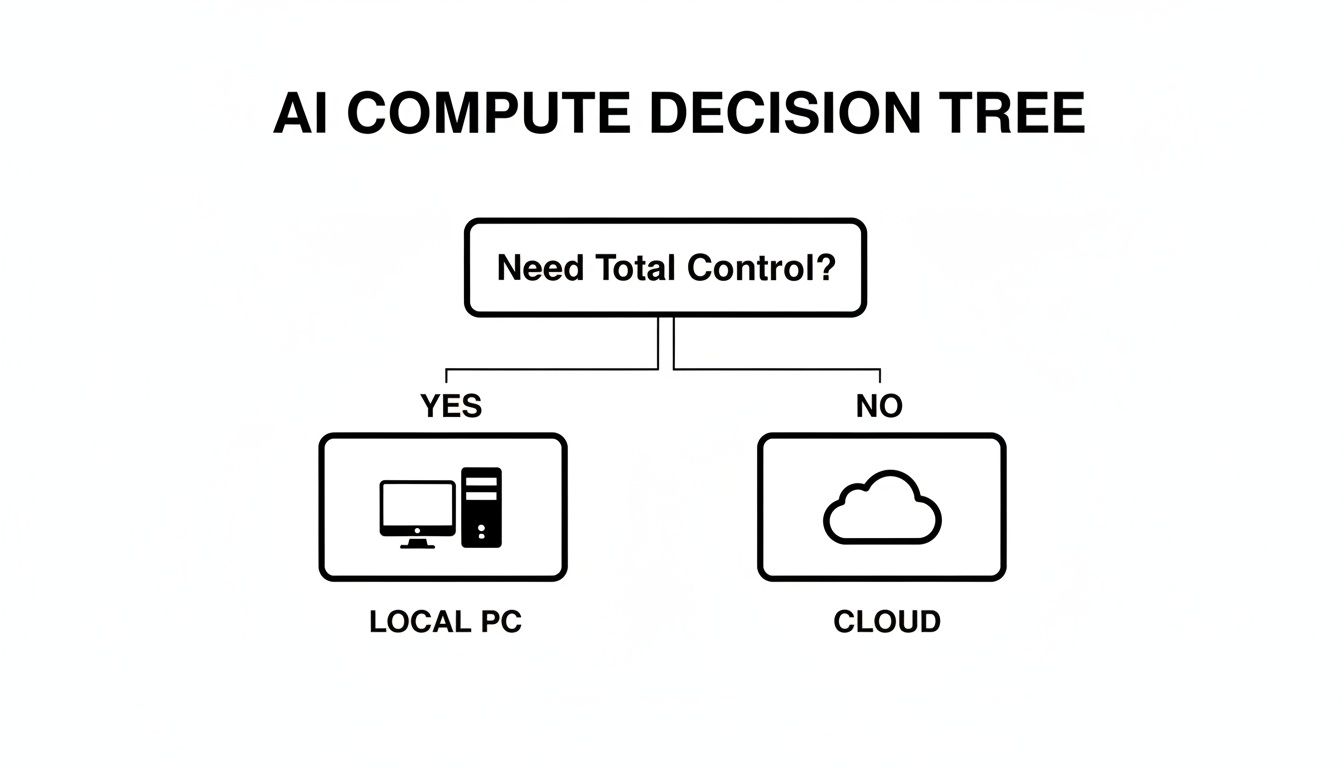
As you can see, the core trade-off often boils down to control and privacy (local) versus pure, on-demand power and scalability (cloud).
The AI Beginner Build
If you're just dipping your toes into AI, you don't need to break the bank. The goal here is simple: get enough power to run popular AI models, play with fun tools, and learn the basics without constant, frustrating slowdowns. A solid mid-range gaming PC is often the perfect starting point.
The most important piece of the puzzle is a GPU with enough VRAM to avoid errors. The NVIDIA GeForce RTX 4070 with 12GB of VRAM is a fantastic choice for this. It gives you the memory you need to run many versions of Stable Diffusion, tinker with smaller language models, and get a real feel for how AI works on your own computer.
Pair that GPU with a capable mid-range processor like an AMD Ryzen 7 or an Intel Core i7. You'll also want 32GB of RAM and a fast 1TB NVMe SSD to keep the system feeling snappy and to manage all the surprisingly large files that AI models and datasets involve.
The Prosumer and Developer Rig
This build is for the serious hobbyist or developer who is ready for the next level. You want to start fine-tuning models, running local LLMs like Llama 3 for your projects, and maybe even training smaller AI models from scratch. At this stage, your GPU becomes the most critical investment.
For this crowd, the NVIDIA GeForce RTX 4090 is still the undisputed king of consumer AI. Its massive 24GB of VRAM is the gold standard for anyone serious about local AI, opening the door to much larger models and datasets that are simply impossible to use on lesser cards.
Expert Opinion: “A GPU without enough VRAM is like a brilliant mathematician who can only remember one number at a time. It doesn't matter how fast they are if they can't hold the whole problem in their head.”
A beast of a GPU needs a strong supporting cast. You'll want to step up to a high-performance CPU like an AMD Ryzen 9 or Intel Core i9 to feed it data without any delays. Plan on at least 64GB of RAM and a 2TB NVMe SSD—your project files and model checkpoints will eat up storage space faster than you think!
The Professional AI Workstation
Now we're in the realm of professional data scientists, ML engineers, and small businesses whose work depends on AI. You're training large, custom models and processing enormous datasets, so you need a machine built for power, stability, and running for days on end. This means moving into true workstation-grade hardware.
The GPU is still the heart of the system. You might be looking at the brand-new NVIDIA GeForce RTX 5090 or even professional cards from the RTX Ada Generation line. Here, 24GB of VRAM is the absolute minimum, with 48GB or more being the real target for serious, from-scratch model training.
The CPU also takes on a bigger role. A high-core-count processor, such as an AMD Threadripper, is a smart choice for heavy data preprocessing. You'll need 128GB of RAM or more to avoid bottlenecks, supported by a storage setup that likely includes a 4TB+ NVMe SSD for active projects and other large SSDs for storing older data.
AI Computer Configurations Compared by User Type (2026)
To make sense of these tiers, the table below breaks down our recommended hardware for each type of user. It provides a clear snapshot of how the parts, projects, and costs scale together.
| User Profile | Primary Use Case | Recommended GPU | CPU | RAM | Storage | Estimated Cost |
|---|---|---|---|---|---|---|
| AI Beginner | Running AI art generators, basic experiments, learning. | NVIDIA RTX 4070 (12GB) | Intel Core i7 / AMD Ryzen 7 | 32GB | 1TB NVMe | $1,500 – $2,500 |
| Prosumer / Developer | Fine-tuning models, running local LLMs, development. | NVIDIA RTX 4090 (24GB) | Intel Core i9 / AMD Ryzen 9 | 64GB | 2TB NVMe | $3,500 – $5,000 |
| Professional / Small Business | Training large models, heavy data processing. | NVIDIA RTX 5090 (24GB+) | AMD Threadripper | 128GB+ | 4TB+ NVMe | $7,000 – $15,000+ |
As you can see, the price jump from a beginner setup to a prosumer rig is significant, driven almost entirely by the GPU. That investment, however, is what directly unlocks your ability to tackle far more complex and exciting AI projects. The best computer for AI is ultimately the one that gives you room to grow.
The Power of AI Laptops for Mobile Workflows
Not that long ago, serious AI work meant being chained to a big desktop computer. The idea of training a model on a plane was pure science fiction. Today, that’s all changed. For students, remote workers, or anyone who isn't parked at the same desk every day, a high-performance laptop can absolutely be the best computer for AI.
What's making this possible? It's a powerful combination of incredibly strong mobile GPUs and the arrival of dedicated Neural Processing Units (NPUs). This duo turns a modern laptop into a truly versatile machine, capable of everything from running AI tasks at lightning speed to developing models locally.
Desktop-Class AI in Your Backpack
The improvement in mobile GPU performance has been mind-blowing. We're at a point where the GPUs in today's laptops can handle jobs that used to require a bulky desktop tower. This means you can genuinely train smaller models, fine-tune open-source projects, or run surprisingly large models locally—all from a coffee shop or a client's office.
Let’s look at some real-world numbers for 2026. NVIDIA’s mobile GeForce RTX 5090 Laptop GPU is an absolute monster, pushing 363 TOPS of performance (726 TOPS with sparsity). That's a 14% jump over the last generation's top chip. This kind of power, found in laptops starting around $3,899.99, means your portable machine can now realistically handle models with up to 120 billion parameters. It’s easy to see why NVIDIA commands 95% of the AI laptop GPU market, which has seen a 40% compound annual growth rate in sales since 2023.
Expert Opinion: “When you’re comparing AI laptops, don’t just glance at the GPU name. Dig into the spec sheet and find the TGP (Total Graphics Power). A well-cooled, high-wattage RTX 4070 can often smoke a power-limited RTX 4080. It’s the hidden variable that dictates real-world performance.”
These specs aren't just for showing off; they enable completely new ways of working. A data science student can run complex code and train PyTorch models on the same machine they carry to class. A freelance developer can grab a fine-tunable model like Llama 3 and work on it for a client while traveling, saving a fortune on cloud compute costs. Our complete guide on the best laptop for artificial intelligence dives deeper into specific model recommendations for these kinds of jobs.
The Rise of the NPU and Smarter Laptops
While the GPU is flexing its muscles on the heavy-lifting tasks, a new, highly specialized chip has joined the team: the Neural Processing Unit (NPU). As a key part of the latest "Copilot+ PCs," the NPU is designed to do one thing exceptionally well: run continuous, low-intensity AI tasks with incredible efficiency.
Think of the NPU as a dedicated helper that handles all the "always-on" AI features. It’s what powers the background blur on your video calls, provides instant language translations, or enables new Windows features to run quietly in the background without you even noticing.
By handing off these jobs to the NPU, your system gets two huge benefits:
- Drastically Better Battery Life: The NPU uses a tiny fraction of the power a GPU would, letting your laptop run these smart features all day without you having to hunt for a power outlet.
- Freed-Up Resources: With the NPU handling the background noise, your CPU and GPU are left completely free to focus their power on what you're actually doing—whether it's compiling code, rendering a video, or training an AI model.
So, should you get an AI laptop? If your work requires you to be mobile and involves running, fine-tuning, or doing light-to-moderate training on AI models, the answer is a big yes. The blend of a monster mobile GPU for the heavy work and an efficient NPU for everyday tasks creates a do-it-all machine that's ready for almost any AI challenge, wherever you happen to be.
Your AI Computer Build or Buy Checklist
Alright, you've done the research on parts and weighed the pros and cons of building a PC versus using the cloud. Now comes the exciting part: making a decision. This checklist is your final sanity check to guide you through the last few questions before you commit to building or buying your AI machine.
Getting these answers right from the start will save you from either overspending on hardware you don't need or, even worse, underspending and getting stuck with a computer that can't get the job done.
Defining Your Core Needs
Let's start by getting really specific about your goals. The "perfect" AI computer is just the one that actually fits what you want to do and how much you can spend.
What are my primary AI tasks? Are you mostly going to be running models that already exist (inference), or are you planning to train or fine-tune your own? Inference is much lighter, but training is a beast that demands a powerful GPU with a ton of VRAM. For instance, creating art with Stable Diffusion is inference, but teaching a model to recognize a new dog breed is training.
What is my total, all-in budget? Be brutally honest with yourself here. A high-end GPU can easily eat more than half your budget. You absolutely must account for a capable CPU, enough RAM, fast storage, and a quality power supply to support it all.
Do I need portability? If you're a student or someone who works on the go, an AI-capable laptop with a solid mobile GPU might be the only practical choice. If you have a dedicated workspace, a desktop PC will always give you more power and upgrade potential for your money.
Don't Overlook the Essentials
It’s easy to get swept up in the excitement of a top-tier GPU and CPU. But if you cut corners on the supporting cast of components, you'll hamstring your system's performance and reliability.
A classic rookie mistake is cheaping out on the Power Supply Unit (PSU) and cooling. High-performance GPUs and CPUs are incredibly power-hungry and kick out a ton of heat. An underpowered PSU will lead to random crashes or stop your parts from even hitting their advertised speeds. Likewise, bad cooling will cause your components to throttle—they'll automatically slow down to avoid overheating, completely wasting the performance you paid for.
Expert Tip: Before you add a single item to your cart, check your software compatibility. Make sure your operating system (Linux is a huge favorite for AI work), GPU drivers (NVIDIA's are king), and AI frameworks like PyTorch or TensorFlow all play nicely together. A quick search for "[Your GPU] + [Your OS] + PyTorch installation guide" can literally save you days of frustration.
Think of this checklist as the blueprint for a smart investment. By figuring out your real needs and giving every component its due—not just the flashy ones—you're well on your way to building the right machine for your AI journey.
Frequently Asked Questions About AI Computers
Getting into AI hardware always brings up a few questions. Let's tackle some of the most common ones we hear from people building their first AI computer and even from seasoned pros looking to upgrade.
How Much VRAM Do I Really Need for AI?
This is the million-dollar question, and the honest answer is: it depends on what you want to do. Think of VRAM (Video RAM) as the size of the workbench for your GPU. The bigger your bench, the larger and more complex the projects (models) you can work on at one time.
For anyone just starting out, a card with 8GB to 12GB of VRAM is a great entry point. GPUs in this range, like the NVIDIA RTX 4060 or 4070, give you plenty of power to experiment with AI art, run lots of pre-trained models, and learn the ropes without spending a fortune.
But if you’re serious about training your own models from scratch or fine-tuning big ones, 24GB of VRAM is the real starting line. This is where top-tier GPUs like the RTX 4090 or the newer RTX 5090 shine. A model and its data have to fit entirely within that VRAM. If they don't, you'll face constant crashes or performance that's so slow it's unusable.
Is a Mac a Good Computer for AI?
You might be surprised at how capable modern Macs with Apple Silicon (M-series chips) are for AI work. Their "unified memory" architecture is a game-changer for efficiency, making them fantastic for developing AI applications and running models (inference). Plus, the built-in Neural Engine gives them a nice little boost.
Expert Opinion: Macs are brilliant for AI development and inference. But for heavy-duty training, the professional world still runs on NVIDIA. The maturity and sheer dominance of the CUDA software ecosystem give NVIDIA a raw performance edge that's impossible to ignore for serious training tasks.
So, a Mac is an excellent, user-friendly choice for a huge number of people exploring AI. But when it comes to pure, unadulterated training horsepower, a PC armed with a top-tier NVIDIA GPU is still the undisputed king.
What Is an NPU and Do I Need One?
An NPU, or Neural Processing Unit, is a specialized, low-power chip designed specifically to speed up AI tasks. By 2026, these have become pretty standard in most new laptops and even some desktop computers.
Think of an NPU as a quiet, efficient helper. It takes care of all the small, ongoing AI features built into your computer—like providing live captions for audio or applying cool video effects during calls—without slowing down your main processor or draining your battery. Your GPU is still the heavy lifter for training models, but an NPU makes the everyday user experience much smoother and smarter. You don't strictly need one to get started, but they are quickly becoming an essential part of any modern machine.
At YourAI2Day, we're committed to helping you understand and navigate the exciting world of artificial intelligence. Explore our articles and resources to stay informed. Visit us at https://www.yourai2day.com to learn more.