
How to Export to CSV A Comprehensive Guide for 2026
You’ve probably had this moment already. Your data is sitting inside an app, dashboard, spreadsheet, or database, and you need to use it somewhere else. Maybe you want to clean it in Excel, analyze it in Python, feed it into a reporting tool, or prepare it for an AI workflow. But first, you need to get it out.
That’s where export to csv becomes one of the most useful small skills in data work.
CSV sounds simple because it is simple. That’s exactly why it lasts. It gives you a plain, portable file that most tools can open, read, and pass along without much drama. If you’re new to AI, analytics, or automation, learning how to export clean CSV files is one of those foundational habits that keeps paying off.
Why CSV is the Universal Language of Data
A CSV file is just a text file where each row is a record and each value is separated by a comma. That’s the technical definition. The practical definition is easier: it’s the format that lets your data leave one tool and survive the trip into another.
If you’ve ever copied rows from one system into another and watched the columns shift, dates break, or special characters turn into nonsense, you’ve already felt why a reliable export format matters. CSV is often the least glamorous option on the menu, but it’s usually the most portable.

CSV has been around for decades, and it’s still central to modern workflows. The format gained widespread adoption through Microsoft’s Excel in 1987 and was formalized by IETF’s RFC 4180 in 2005. Today, it remains dominant, with Google’s 2023 data showing 70% of BigQuery exports are to CSV for compatibility with tools like Python’s pandas library (reference on CSV adoption and BigQuery exports).
CSV is the closest thing data teams have to a shared travel adapter. It isn’t fancy, but it works in almost every environment.
Why beginners should care
When you’re starting out, it’s tempting to focus on the exciting tools. Python notebooks. dashboards. AI apps. vector databases. But none of those help much if your raw data is locked in a tool you can’t move it out of cleanly.
CSV matters because it helps you:
- Move data across tools without relying on a proprietary file type
- Inspect data with your own eyes in a spreadsheet or text editor
- Create repeatable workflows for reporting, analysis, and model preparation
- Share datasets with teammates who use different software
For AI work, this gets even more practical. Many beginner AI projects start with a spreadsheet export. Product feedback, customer support logs, CRM records, prompt outputs, and labeled examples often begin as tabular data. CSV gives you a clean bridge from “business data” to “training or evaluation data.”
Why it still beats more advanced formats in many cases
There are newer formats that do certain jobs better. Some handle compression better. Some preserve richer data types. Some are better for massive analytics pipelines.
But CSV wins when you need something a person can open, a script can parse, and a broad set of tools can understand right away.
Simple files reduce friction. If you’re learning data science or building your first AI workflow, reducing friction is often more valuable than choosing the most advanced format.
Exporting from Your Everyday Tools
The starting point is often not code. It's a spreadsheet, a report, or a query result. That’s fine. Manual export to csv is often the fastest way to get moving.
The key is to export deliberately. Don’t just click the first download button you see. Before exporting, check what you’re sending out: the full dataset or a filtered view, raw values or formulas, one sheet or many, recent rows or everything.

Exporting from Excel
In Microsoft Excel, exporting to CSV usually means saving the current worksheet as a CSV file. That sounds obvious, but it catches beginners all the time. If your workbook has multiple sheets, the CSV export won’t preserve them as tabs. It exports the active sheet as flat tabular data.
A safe Excel habit looks like this:
- Duplicate the sheet first so you don’t overwrite a working file with a stripped-down CSV version
- Remove formulas if needed and keep only the final values
- Check date and number formatting before export, especially if you’ll import the file elsewhere
- Use clear headers in the first row so other tools know what each column means
If your sheet contains comments, color coding, filters, merged cells, or formulas, remember that CSV doesn’t carry that formatting with it. Think of CSV as the data only, not the presentation.
Exporting from Google Sheets
Google Sheets makes export easy. You usually go to File, then Download, then choose CSV. Like Excel, this often exports a single sheet rather than a full multi-tab workbook.
Google Sheets is especially handy when you’re collaborating with other people and want a quick file handoff. If you regularly pull marketplace or ecommerce data into Sheets, it’s worth learning how teams automate Amazon data in Google Sheets so the export step starts from fresher, more structured information.
A couple of beginner checks help here:
- Make sure your column names are final before export.
- Freeze the header row while reviewing so you don’t misread columns.
- Filter carefully. Some exports reflect what’s visible, while others include more than you expect depending on the workflow.
If your next step is dashboarding, you may also find this guide to Power BI basics useful after you’ve exported your raw file.
Exporting query results from a SQL client
If you use tools like DBeaver, SQL Server Management Studio, or another SQL client, the export usually starts from a query result grid. You run a query, inspect the results, then use an export option from the result set.
Here’s a beginner-friendly example:
SELECT customer_id, order_date, total_amount
FROM orders
WHERE order_date >= '2026-01-01';
After running a query like that, most SQL tools let you right-click the results and export them as CSV. What matters isn’t the exact button name. It’s the habit of checking the output before download.
What to inspect before you click export
A query export can look correct while still being wrong for your use case. Watch for these issues:
- Unexpected duplicates because of a join
- Missing rows because of a filter you forgot was in the query
- Confusing column names like
col1orexpr_result - Mixed formats such as text values in a mostly numeric column
Practical rule: If you wouldn’t feel comfortable explaining each exported column to another person, the export isn’t ready yet.
This kind of export isn’t niche. In professional sports analytics, platforms like Pixellot process over 1 million games annually, exporting granular athlete stats to CSV, while in IT 65% of professionals prefer CSV for its lightweight nature when exporting network logs (reference on sports analytics and IT export preferences). Different fields, same pattern. People want data they can move and analyze quickly.
Programmatic Exports with Python and Pandas
Clicking Export works well until you need consistency. Once you start repeating the same export every week, or you need to clean the data before saving it, code becomes a better tool.
Python with pandas is a popular next step because it lets you load data, inspect it, transform it, and save it in one place. That makes your export process reproducible. If someone asks how the file was created, you can show the script instead of trying to remember which buttons you clicked.

A simple pandas example
Here’s a small example that creates a table and writes it to a CSV file:
import pandas as pd

data = [
    {"name": "Ava", "country": "UK", "score": 92},
    {"name": "Noah", "country": "Germany", "score": 88},
    {"name": "Lina", "country": "Japan", "score": 95}
]

df = pd.DataFrame(data)

df.to_csv("students.csv", index=False, encoding="utf-8")
A few things matter here.
pd.DataFrame(data) turns a list of Python dictionaries into a table. Each dictionary becomes one row.
to_csv("students.csv") saves the file.
index=False stops pandas from adding an extra numbered column at the left. Beginners often forget this and later wonder why a mystery column appeared.
encoding="utf-8" helps preserve characters correctly, especially if names or text include accents or non-Latin characters.
Why this matters for AI projects
A lot of beginner AI work is really data preparation in disguise. You may be exporting prompt results, cleaning user feedback, labeling examples, or saving model outputs for review. pandas helps because the export step can include quality checks before the file is written.
For example, you might:
- remove blank rows
- rename columns to something readable
- standardize categories
- save only the fields needed for a model input file
If you’re building your Python toolkit, this roundup of Python libraries for data analysis gives useful context beyond pandas alone.
Add checks before writing the file
The biggest upgrade from manual export is that code can validate the dataset first. That means fewer broken files later.
import pandas as pd
import csv

df = pd.read_excel("raw_scores.xlsx")

# Basic checks
print(df.isnull().sum())
print(df.dtypes)

# Clean column names
df.columns = [col.strip().lower().replace(" ", "_") for col in df.columns]

# Export with safer quoting
df.to_csv(
    "clean_scores.csv",
    index=False,
    encoding="utf-8",
    quoting=csv.QUOTE_ALL
)
This kind of pattern is worth adopting early. It turns exporting from a one-click action into a repeatable mini-pipeline.
A short walkthrough can help if you like seeing the workflow in action:
The best export script is boring. It produces the same clean file every time, with no surprises.
Solving Common CSV Export Headaches
Most CSV problems aren’t really CSV problems. They’re format mismatch problems. One tool writes the file one way, another tool reads it another way, and you end up with broken columns, strange symbols, or files that choke on large exports.
A more reliable approach starts before the export itself. In expert data pipelines, a rigorous multi-step process includes pre-export validation to find missing values, standardizing on UTF-8 encoding, using quoting=csv.QUOTE_ALL in pandas, and chunking large files to prevent memory overflows, which occur in 15% of high-volume operations (reference on validation, UTF-8, quoting, and chunking).
Encoding problems
Encoding tells software how to represent characters as bytes. If one tool writes text in one encoding and another tool guesses wrong, names and text fields can turn into gibberish.
This is why files with accented names, multilingual text, or symbols often look fine in one program and broken in another.
The practical fix is simple:
- Prefer UTF-8 when exporting
- Test the file in the tool that will use it
- Use UTF-8 with BOM only when a target app needs it, especially some spreadsheet workflows
If your text looks broken after export, don’t start editing rows by hand. Check encoding first.
Delimiter and locale problems
A CSV doesn’t always behave the same in every country or tool. In some regions, commas are used as decimal separators. That creates confusion because the comma is also the usual column separator.
If your numbers look split across columns, the issue may not be your data. It may be a locale mismatch.
This is one of the most overlooked beginner pain points, and it shows up outside analytics too. If you work with finance operations, you’ll see the same pattern in structured payment data. A useful related example is how teams solve common SEPA XML errors when source files contain formatting inconsistencies before conversion.
Quoting problems
A comma inside a text field can break a row if the exporter doesn’t quote values correctly. For example:
name,city,notes
Maya,Berlin,Works in sales, marketing, and ops
That row looks like it has too many columns. The fix is to quote text fields properly:
"name","city","notes"
"Maya","Berlin","Works in sales, marketing, and ops"
Using csv.QUOTE_ALL in pandas is a safe beginner move because it removes ambiguity.
Large file problems
Large exports often fail for boring reasons. The machine runs out of memory. The app freezes. The export completes, but the file is incomplete. When that happens, beginners often assume CSV is broken. Usually the issue is scale, not format.
Chunking helps. Instead of trying to write one massive file at once, you write smaller pieces in sequence or process data in batches before export.
Common CSV Export Errors and Fixes
| Symptom | Likely Cause | Quick Fix |
|---|---|---|
| Strange characters appear in names or notes | Wrong text encoding | Export as UTF-8 and re-open in the target tool |
| One column splits into many | Delimiter or locale mismatch | Check separator settings and regional number formats |
| Rows shift when text contains commas | Missing or inconsistent quoting | Export with quoting=csv.QUOTE_ALL |
| Extra unnamed column appears | Index got exported accidentally | Use index=False in pandas |
| Export crashes on large datasets | Memory pressure during write | Export in chunks or split the job |
| Dates import incorrectly | Mixed date formats | Standardize dates before export |
A quick troubleshooting routine
When a CSV behaves strangely, don’t change five things at once. Work through it in order:
- Open the file in a text editor and inspect the raw separators.
- Check whether headers and row counts look plausible.
- Confirm encoding.
- Re-import the file into the destination tool.
- If the file is large, test the process on a smaller sample first.
That routine saves a lot of wasted effort.
Automating Your CSV Exports for AI Workflows
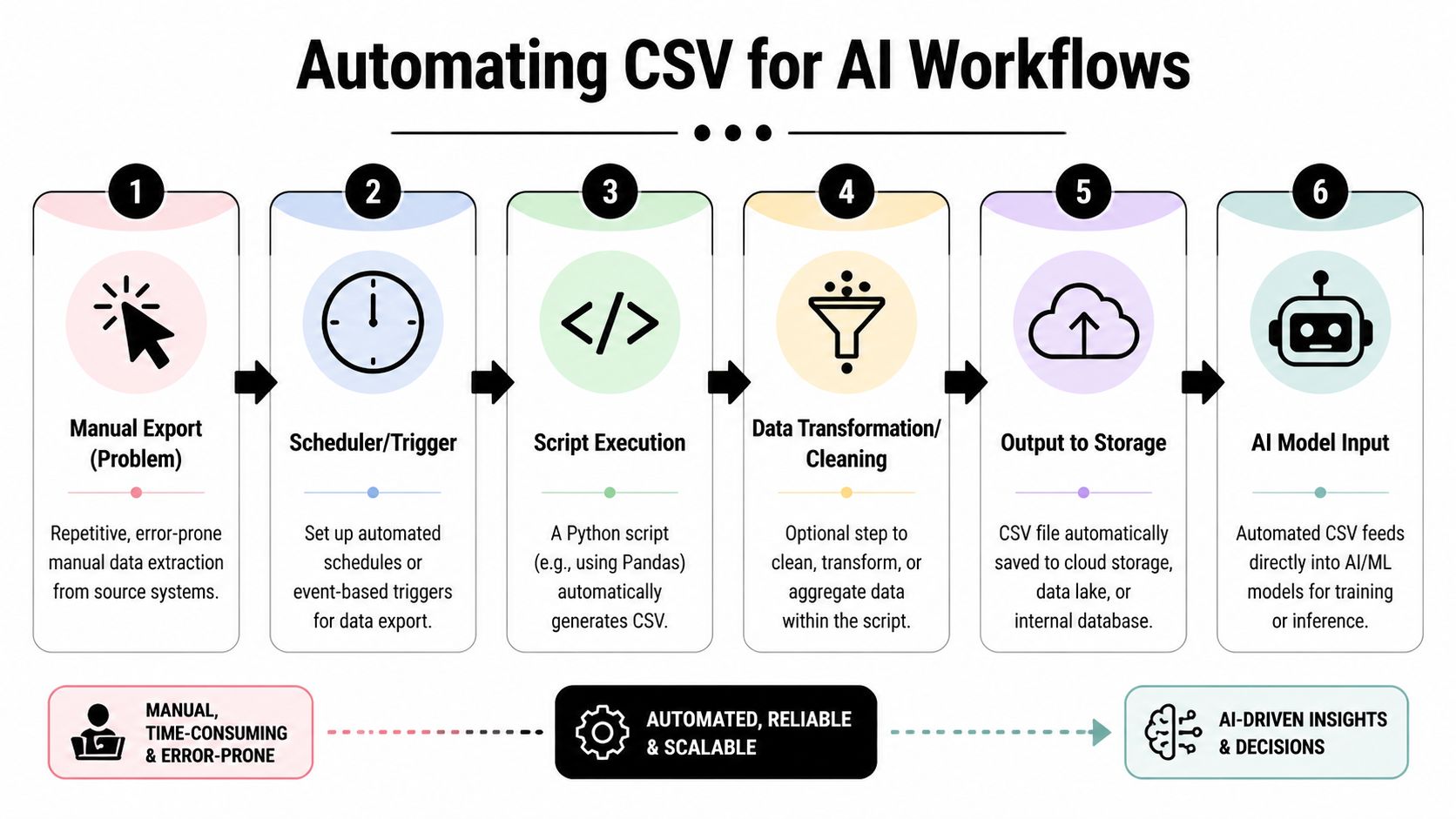
Manual exports are fine for occasional tasks. They’re a bad fit for recurring AI work. If you retrain a model, refresh an evaluation set, archive inference logs, or pull reports every morning, you want a process that runs the same way each time.
That need is growing. Demand for automating large-scale CSV exports is rising, with Google Trends showing “export to CSV automation” queries up 35% year over year since April 2025. The same source notes that 70% of users in machine learning forums report memory limits on 10M+ row CSVs without chunking (reference on automation demand and memory issues)).
What an automated export looks like
A beginner-friendly automated workflow usually has five parts:
- A source such as a database, spreadsheet, app API, or internal report
- A script that fetches the data
- A cleaning step that standardizes columns and values
- A CSV export that writes the final file
- A schedule that runs the script regularly
You don’t need a huge platform to do this. A Python script plus a scheduler is enough for many useful workflows.
Scheduling a simple export
If you’ve already written a pandas export script, you can schedule it with cron on Linux or macOS, or Task Scheduler on Windows. The scheduler runs your script at a chosen time.
That turns “remember to export every Monday” into “the file appears every Monday.”
A basic AI use case might be:
- Pull support tickets from an API.
- Clean the text and category fields.
- Save a CSV snapshot.
- Use that file for classification experiments or prompt evaluation.
If you’re thinking more broadly about repeatable systems, this guide to AI workflow automation is a useful next read.
Pulling data from APIs into CSV
A lot of AI-related data never lives in spreadsheets first. It comes from APIs. Product analytics tools, CRMs, ticketing platforms, and SaaS apps often expose structured data through endpoints that a script can call.
Your script can request the data, flatten the response into rows, then write the result to CSV. That’s especially useful when you need a fresh export on a schedule rather than a one-off download.
Here’s the mindset that helps: treat CSV as the delivery format, not the whole workflow. The actual workflow is fetch, clean, validate, save.
Operational advice: If you automate exports, also automate checks. A scheduled script that quietly produces bad files is worse than a manual process.
When automation gets more serious
As your workflows grow, you may want logging, retries, alerts, cloud storage, and handoffs into downstream tools. That’s where simple scripts begin to evolve into pipelines.
You don’t have to jump there immediately. But it helps to know the direction. Developers exploring lightweight automation patterns may also like this roundup of AI tools for software developers, especially if they’re trying to reduce repetitive glue work around data extraction and transformation.
For beginners, the win is smaller and more immediate. Automating export to csv means fewer missed runs, fewer click mistakes, and cleaner inputs for AI experiments.
Final Checks and Best Practices for Clean CSVs
A clean CSV is boring in the best way. It opens correctly, imports correctly, and doesn’t force the next person to guess what you meant.
One issue deserves special attention. Stack Overflow data shows that 20% of the more than 150,000 questions tagged “csv” involve encoding or locale errors, yet few tutorials explain how to handle European decimal separators or use UTF-8-BOM for better Excel compatibility (reference on CSV locale and encoding issues)).
A short quality checklist
Before you send or use a CSV, check these:
- Use clear headers that describe the field, not internal shorthand
- Keep one row per record unless you have a strong reason not to
- Standardize missing values so blanks,
NULL, and placeholder text don’t mix - Pick an encoding on purpose instead of leaving it to chance
- Test the file where it will be used, not only where it was created
Think about portability, not just export success
A file can export successfully and still be poor quality. That happens when headers are cryptic, dates are inconsistent, text isn’t encoded well, or the receiving tool interprets separators differently.
For global teams, portability matters even more. If one teammate opens the file in Excel with one locale and another imports it into Python in a different environment, small assumptions can break the workflow.
Clean CSVs come from clear decisions. Headers, encoding, quoting, delimiters, and null handling shouldn’t be accidental.
Know when CSV stops being the right choice
CSV is excellent for portability and inspection. It’s less ideal when datasets become huge, highly nested, or heavily typed. In those cases, teams often move toward formats better suited for analytics or machine learning pipelines.
That doesn’t make CSV obsolete. It just means you should treat it as one tool in your data toolbox. For many exports, especially beginner and cross-team workflows, it’s still the right default.
Frequently Asked Questions About CSV Exports
When should I use CSV instead of an Excel file
Use CSV when the priority is portability and compatibility. CSV works well when you want to move data between systems, load it into Python, import it into databases, or share plain tabular data with other tools. Use Excel when you need formulas, multiple sheets, formatting, charts, or comments.
Are CSV files secure for sensitive data
Not by themselves. A CSV file is just plain data. It doesn’t provide built-in protection for sensitive records. If the file contains personal, financial, or confidential information, protect it through your storage, transfer, and access controls. Keep the export minimal. Don’t include columns you don’t need.
What’s the maximum size for a CSV file
There isn’t one universal CSV size limit built into the format itself. The practical limit usually comes from the tool creating it, the app opening it, your system memory, or the workflow around it. If a file becomes hard to generate or open, split it, chunk it, or consider a different format for that use case.
Why does my CSV look wrong in Excel but fine elsewhere
Excel may interpret delimiters, dates, encodings, or number formats based on your regional settings. The file may be valid while Excel is making a different assumption about how to read it. Check encoding, separators, and decimal conventions first.
Should I learn manual export first or jump to Python
Start with manual export if you’re brand new. It helps you see the structure of the data. Move to Python when the process becomes repetitive, when you need validation, or when your export is part of a larger analysis or AI workflow.
If you’re learning how data moves from business tools into real AI use cases, YourAI2Day is a solid place to keep building. It covers practical AI workflows, tools, and concepts in a way that’s approachable for beginners but still useful once your projects get more technical.